
Add a teammate to a contact so you can work the contact together, and choose how much access they get.
What’s a collaborator?
A collaborator is a teammate you add to a contact so they can work with you on it. For example, you might add:
- A teammate who covers your leads while you’re away
- A co-listing agent
- A lender on your team
- Anyone else on your team you need to work with on this contact
Each collaborator gets 1 of 3 access levels:
- View: they can see the contact’s information, but can’t change it.
- Edit: they can update the contact’s basic information.
- Owner: they have full access to the contact.
Good to know
Teammates with the Owner role can see every contact in the CRM. Teammates with the Member role only see contacts assigned to them or contacts they’re a collaborator on. Adding a Member as a collaborator is how you share a contact with them.
Good to know
You can only add teammates who have accepted their invite to your GGMS team. You can’t add people outside your team. If someone is missing from the list, make sure they’ve accepted their team invite first.
What you’ll need
- The Owner role, or to be the contact’s owner
- A teammate who has accepted their invite to your team
- About 2 minutes
Add a collaborator
- Open the contact
In the left menu, click Contacts, and then click the contact’s name. - Find the Collaborators section
In the left column, scroll to Collaborators. It lists everyone who can work on this contact and their access level.
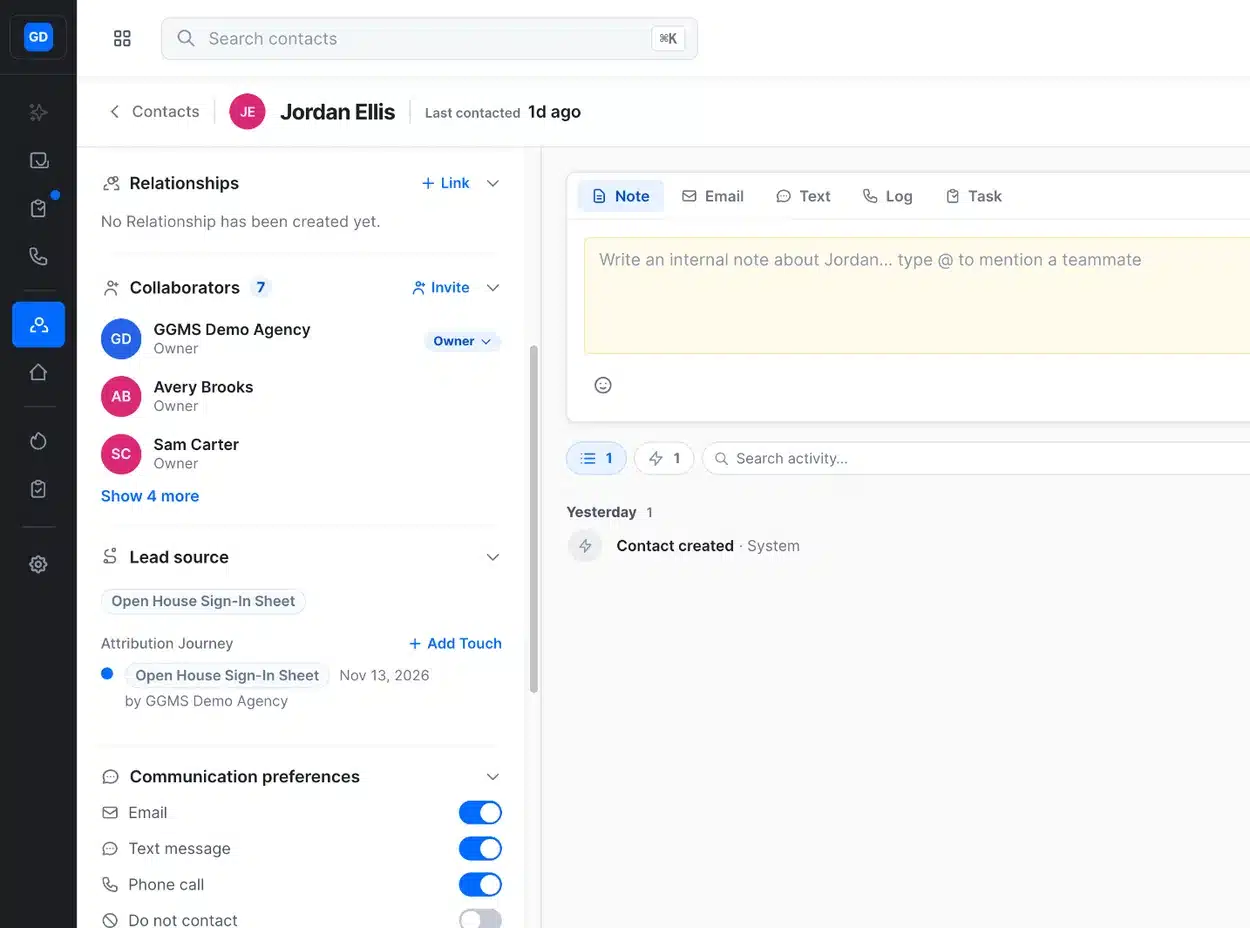
The Collaborators section lists everyone on the contact. Click Invite to add someone. - Click Invite
The Manage collaborators window opens. Current collaborators are listed at the top, checked, with their access level. Your other teammates are listed below with empty boxes. To find someone fast, type their name in Search for a collaborator.
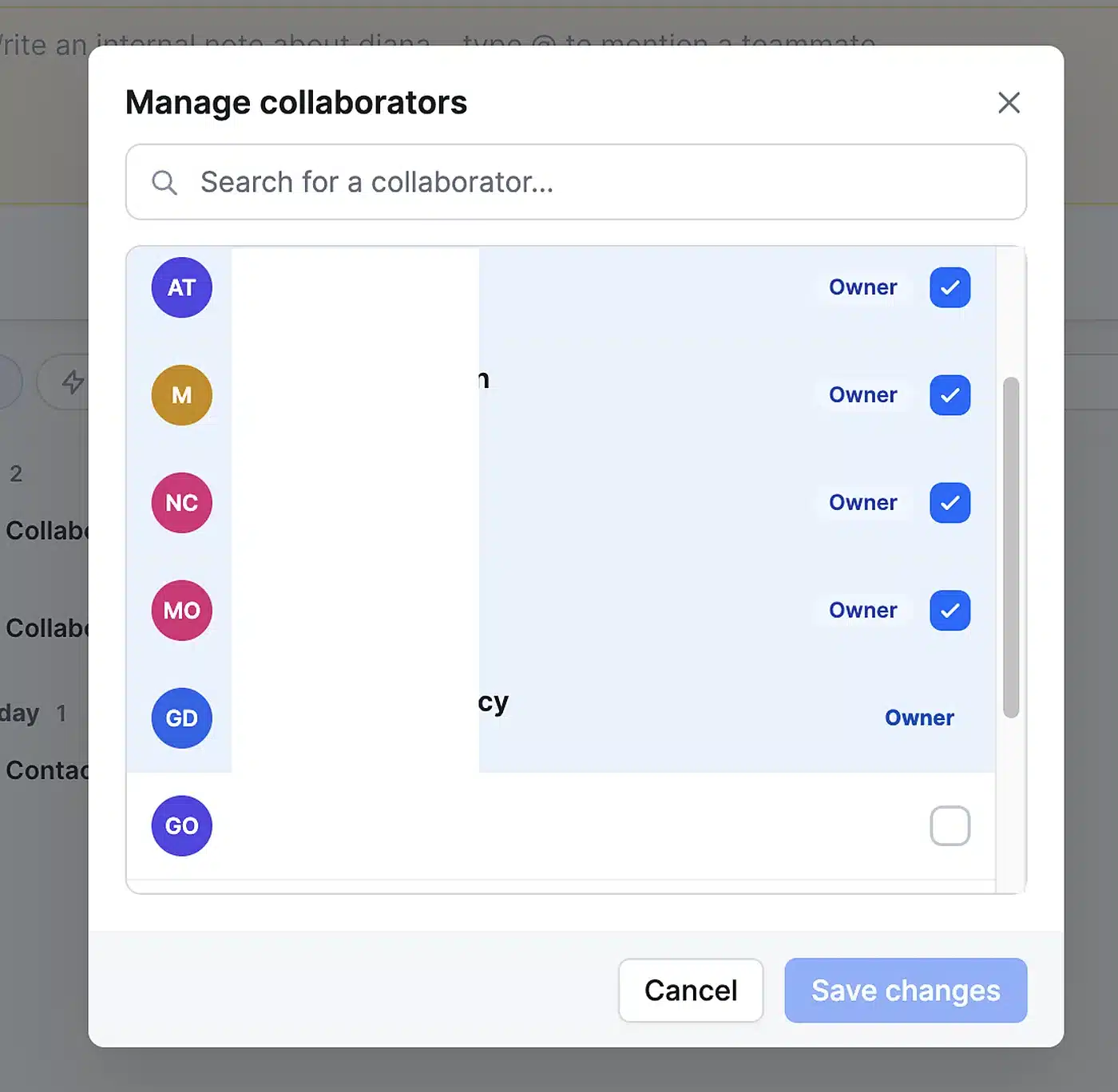
Current collaborators are checked. Teammates you can add have empty boxes. - Select a teammate and choose their access
Click the empty box next to their name, and then pick View, Edit, or Owner from the dropdown. Repeat for anyone else you want to add.
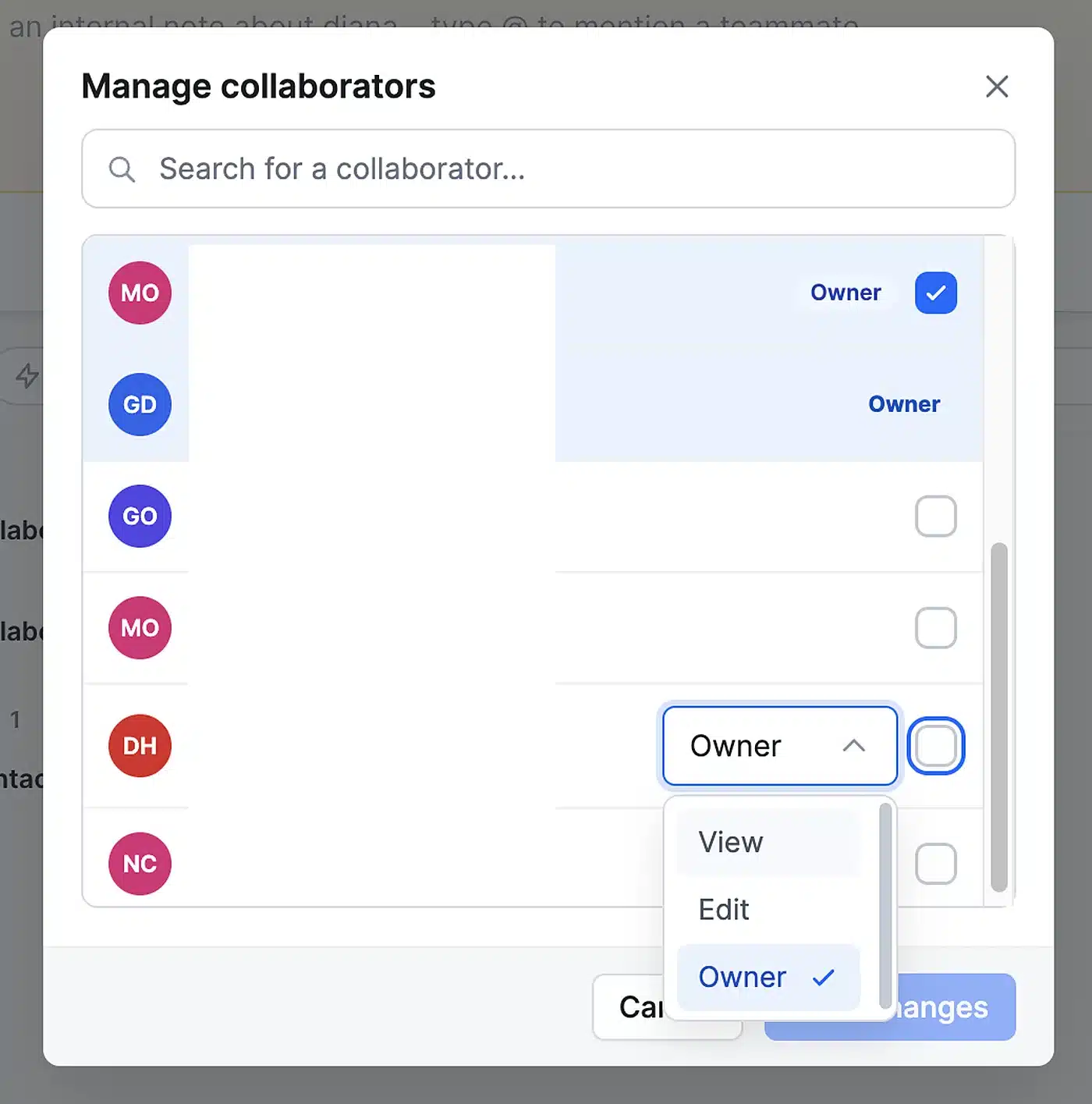
Pick the access level that fits what they need to do. - Click Save changes
Your new collaborators appear in the Collaborators section.
Tip
Give people only the access they need. For example, a lender who only needs to see contact details can have View access.
Change or remove a collaborator
The contact owner and anyone with the Owner role can change or remove a collaborator’s access. You do both in the same window.
- Click Invite
In the Collaborators section, click Invite. The Manage collaborators window lists current collaborators at the top, checked, with their access level. - Uncheck the collaborator
Click the checked box next to their name. To remove them from the contact, skip to step 4. - Recheck and choose their new access
To change their access instead, click the box again, and then pick View, Edit, or Owner. - Click Save changes
The Collaborators section updates to show the change.
What happens next
Each new collaborator gets a notification that they were added to the contact. They can then work with the contact based on their access level.