
Invite agents, admins, and staff to your GGMS CRM so everyone works from the same contacts and leads.
What you’ll need
- A GGMS CRM login with the Owner role. Only Owners can send invites.
- The email address of each person you want to invite
- An open seat on your plan
- About 2 minutes per person
Step by step
- Open your settings
In the left sidebar of your CRM, click Settings (the gear icon). - Go to your team list
Under Company, click Team. You’ll see All Team Members, with every user, their role, and their invite status.
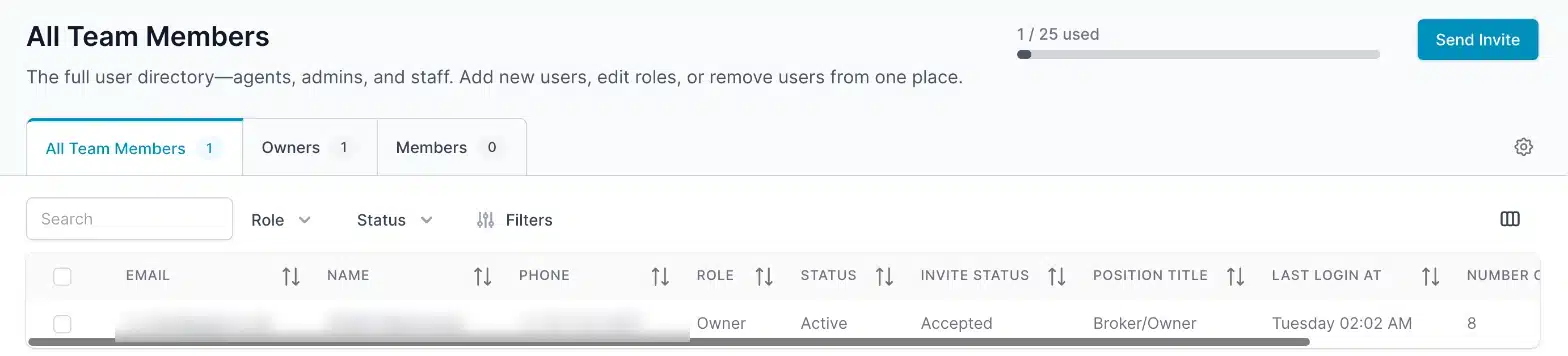
Find Send Invite in the top right of your team list. - Start a new invite
Click Send Invite. The Invite user window opens. - Enter their email address
In Email address, type the email the person will use to log in. - Choose a role
In Role, choose Owner or Member. Owners can open the Team section and invite people, but Members can’t. - Choose a position title
In Position Title, choose the title that matches their job, such as Real Estate Agent, Team Leader, or Transaction Coordinator. - Send the invite
Click Send invite. To close the window without inviting anyone, click Cancel.
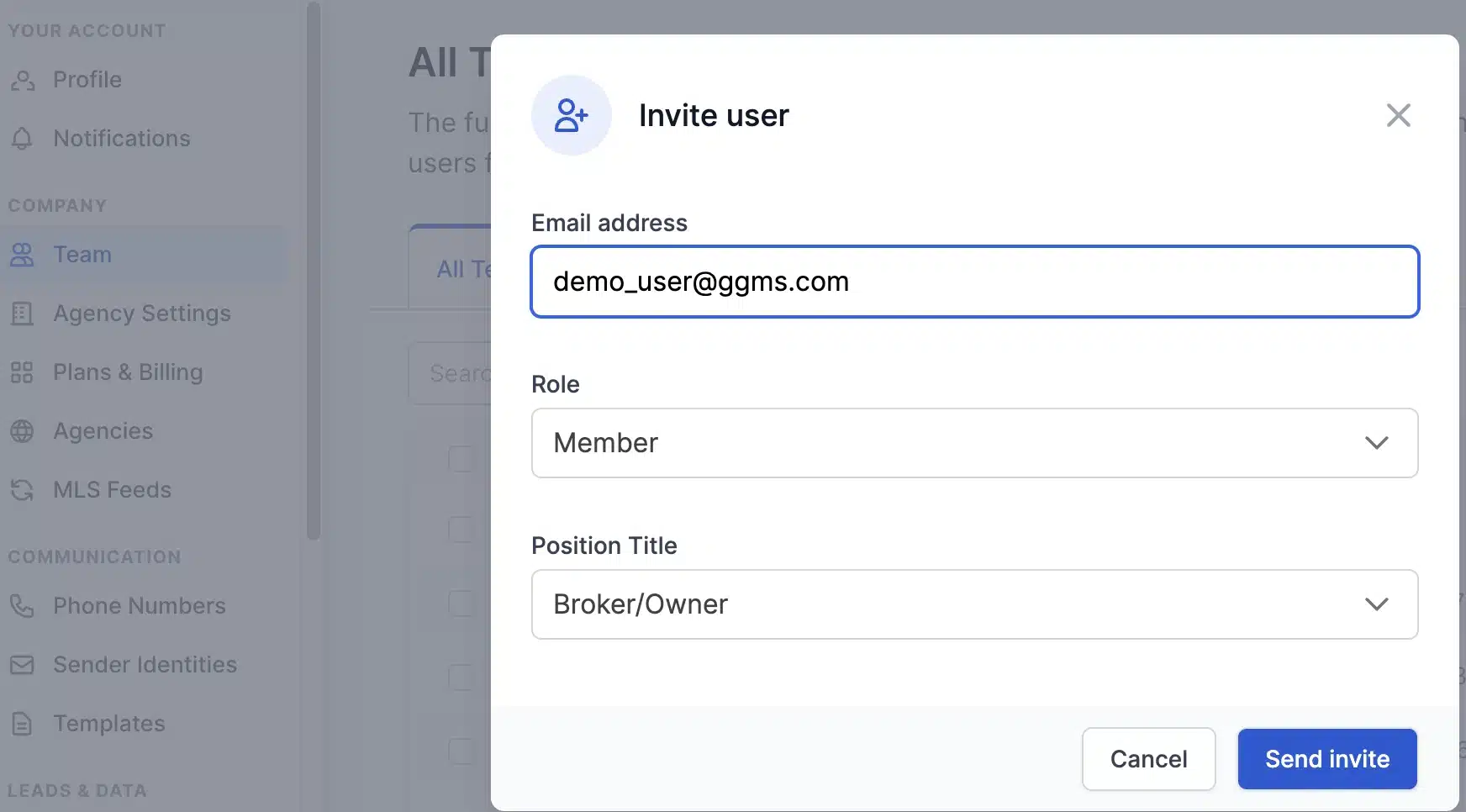
Check the email address and role before you click Send invite.
Important
The Role and Position Title fields both start on the highest setting, Owner and Broker/Owner. Change them before you send, unless you want the person to manage your team and send invites too.
Position titles you can choose
- Broker/Owner
- Managing Broker
- Team Leader
- Real Estate Agent
- Inside Sales Agent
- Transaction Coordinator
- Listing Coordinator
- Marketing Manager
- Client Success/Support
- Office Admin
- Virtual Assistant
- Showing Assistant
What happens next
The person gets an email from GGMS with a link to join your CRM. The link expires, so ask them to accept it soon. Until they accept, they show in your team list with an Invite Status of Pending. After they accept and log in, it changes to Accepted.
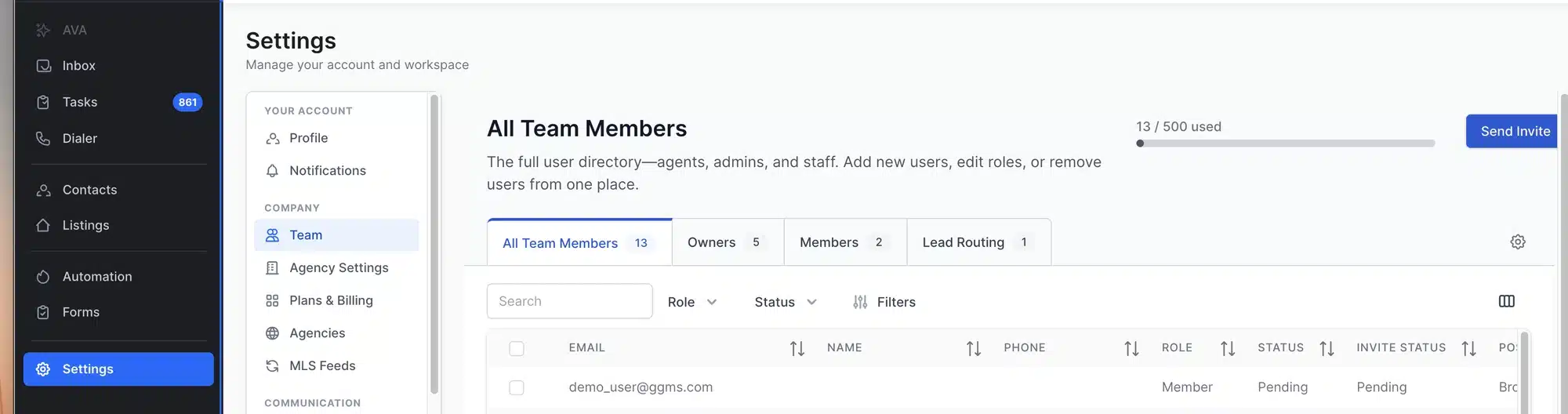
The counter at the top of the page, for example 13 / 500 used, shows how many seats you’ve used on your plan.
Tip
To see only certain people, use the Owners and Members tabs above the list, or filter by Role and Status.
Troubleshooting
The person didn’t get the invite email
Ask them to check their spam or junk folder for an email from GGMS. Then confirm the email address in your team list is spelled correctly. While an invite is pending, you can also click Copy Invite Link in the Actions column and send them the link yourself.
The invite link expired
Send a new invite. An Owner follows the same steps, using the same email address, role, and position title as before. The new invite replaces the old link.
I invited someone with the wrong role
Find the person in your team list, and then click Edit (the pencil icon) in the Actions column. In Update User, change their Role or Position Title, and then click Update.
I’ve run out of seats
If the counter shows every seat in use, remove users who no longer need access, or contact support about adding more.