
Your inbox puts your emails, text messages, and calls with your contacts in one place, so you can read, reply, and follow up without leaving your CRM.
What you’ll need
- A login to your GGMS CRM
- A verified email and a device set up in your profile. Your inbox is connected through them.
- About 5 minutes
Good to know
Each team member has their own inbox and sees only their own conversations, whatever their permissions are. You see conversations only with contacts assigned to you.
Find your way around
- Open your inbox
In the left menu, click Inbox. The Open list shows your conversations, and a small icon on each contact’s picture shows whether it’s an email, a text, or a call.
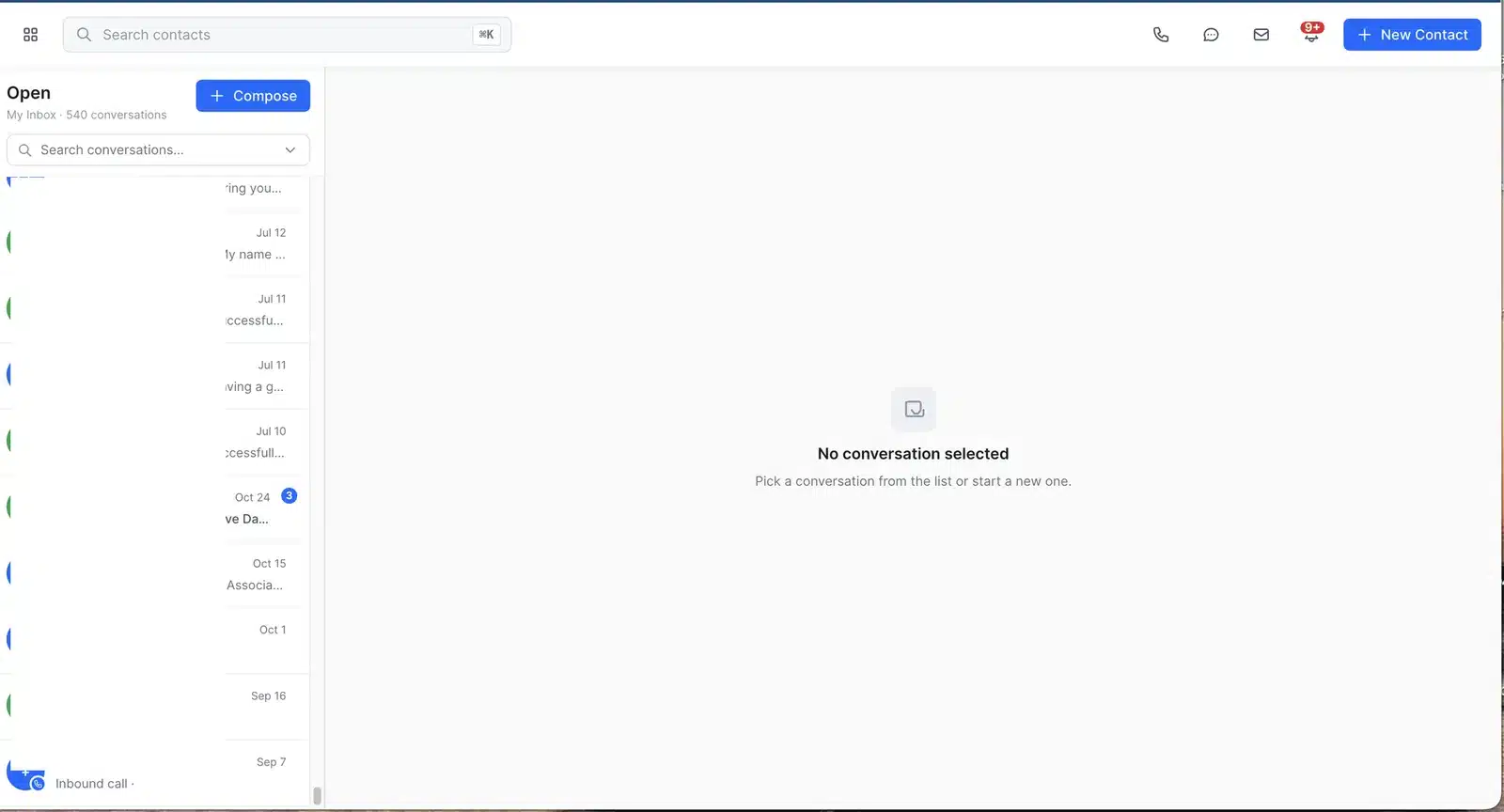
The icon on each contact’s picture shows whether it’s an email, a text, or a call. - Open a conversation
Click a conversation in the list. Messages appear in the middle, and the contact’s tags, contact info, classification, and lead source appear on the right.
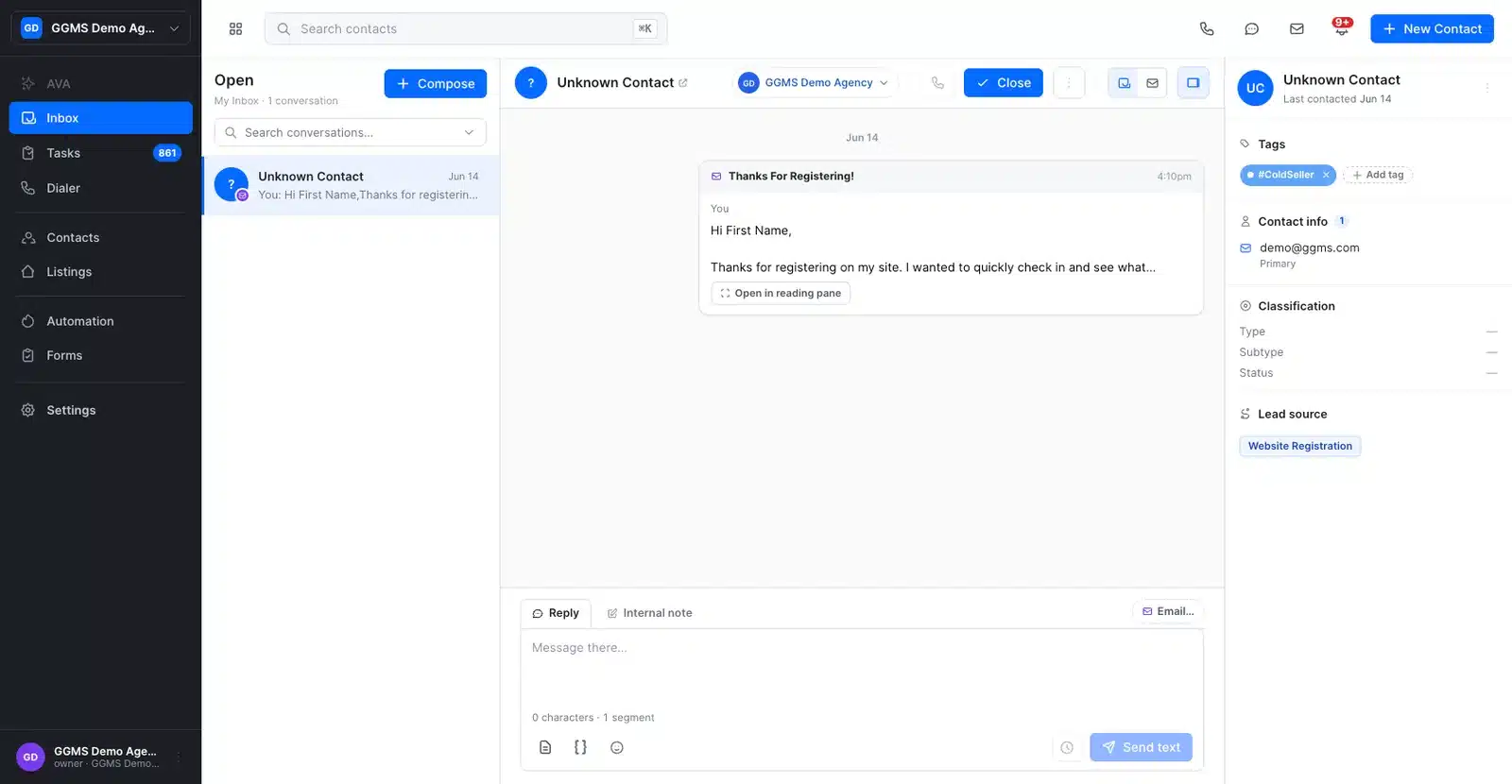
The list is on the left, messages are in the middle, and contact details are on the right. - Choose how you read it
At the top of the conversation, click Read as timeline to see everything in order, or Read as email thread to see full emails with Reply, Reply all, and Text instead. Click Toggle contact details to hide or show the right panel.
Find a conversation
- Search your conversations
Type a name, email, phone number, or word in the Search conversations box above the list. - Open advanced search
Click the arrow at the right end of the search box to open Advanced search. - Set your filters
Choose a Status, such as Open or Closed, a Channel (Email, SMS, or Calls), and any other filters, such as Has the words or Date within. - Run the search
Click Search. To start over, click Clear.
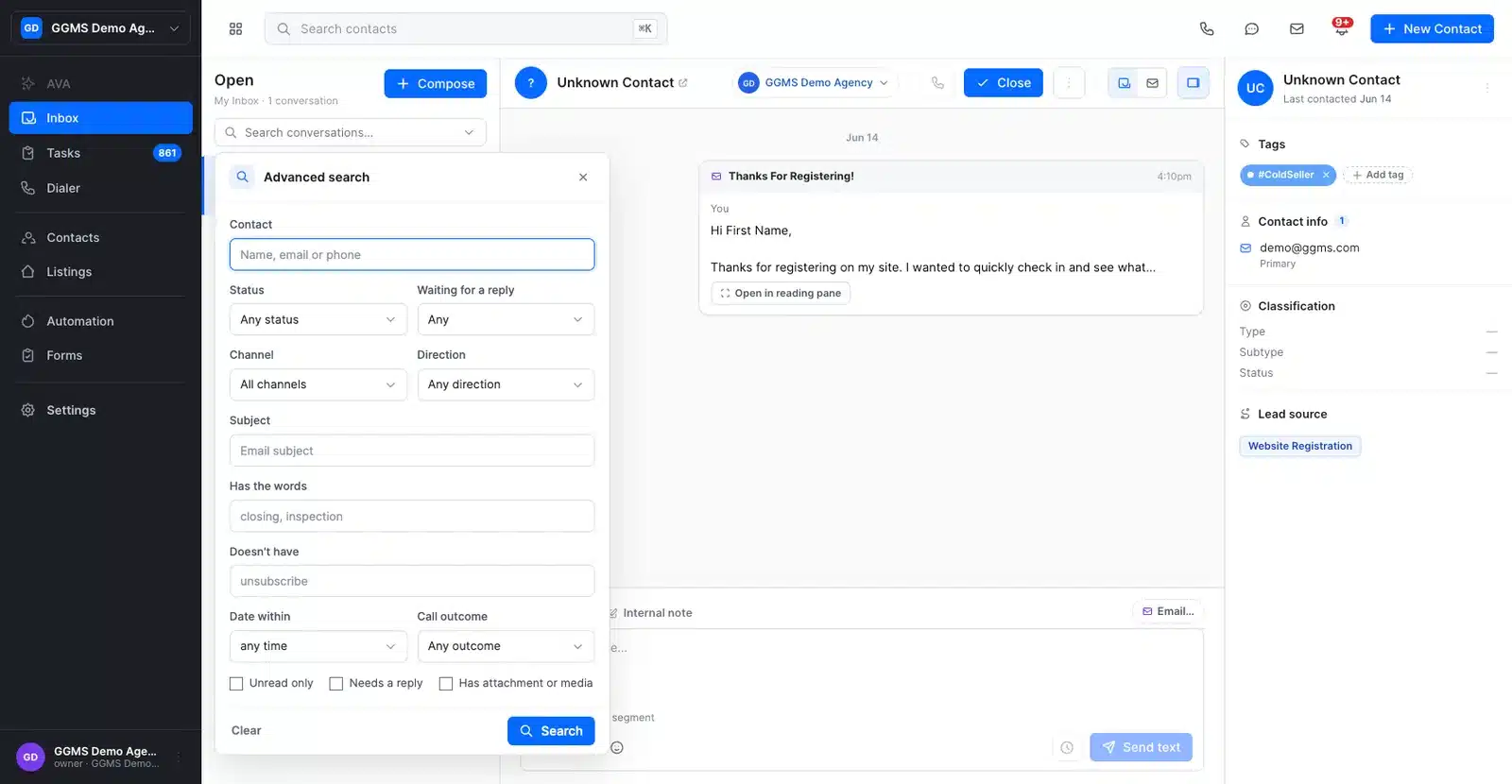
Advanced search lets you filter by status, channel, words, and date.
Tip
Select Needs a reply or Unread only at the bottom of Advanced search to find the people waiting on you.
Send a new email or text
- Click Compose
At the top of the conversation list, click Compose. - Choose Text or Email
Click the Text or Email tab at the top of the window. - Pick the contact
In the To field, search for the contact you want to message. - Write your message
Type your message. Use the icons below it to add Templates, Merge fields, or an Emoji. - Send or schedule it
Click Send text to send it now, or click the clock icon to Schedule send for later.
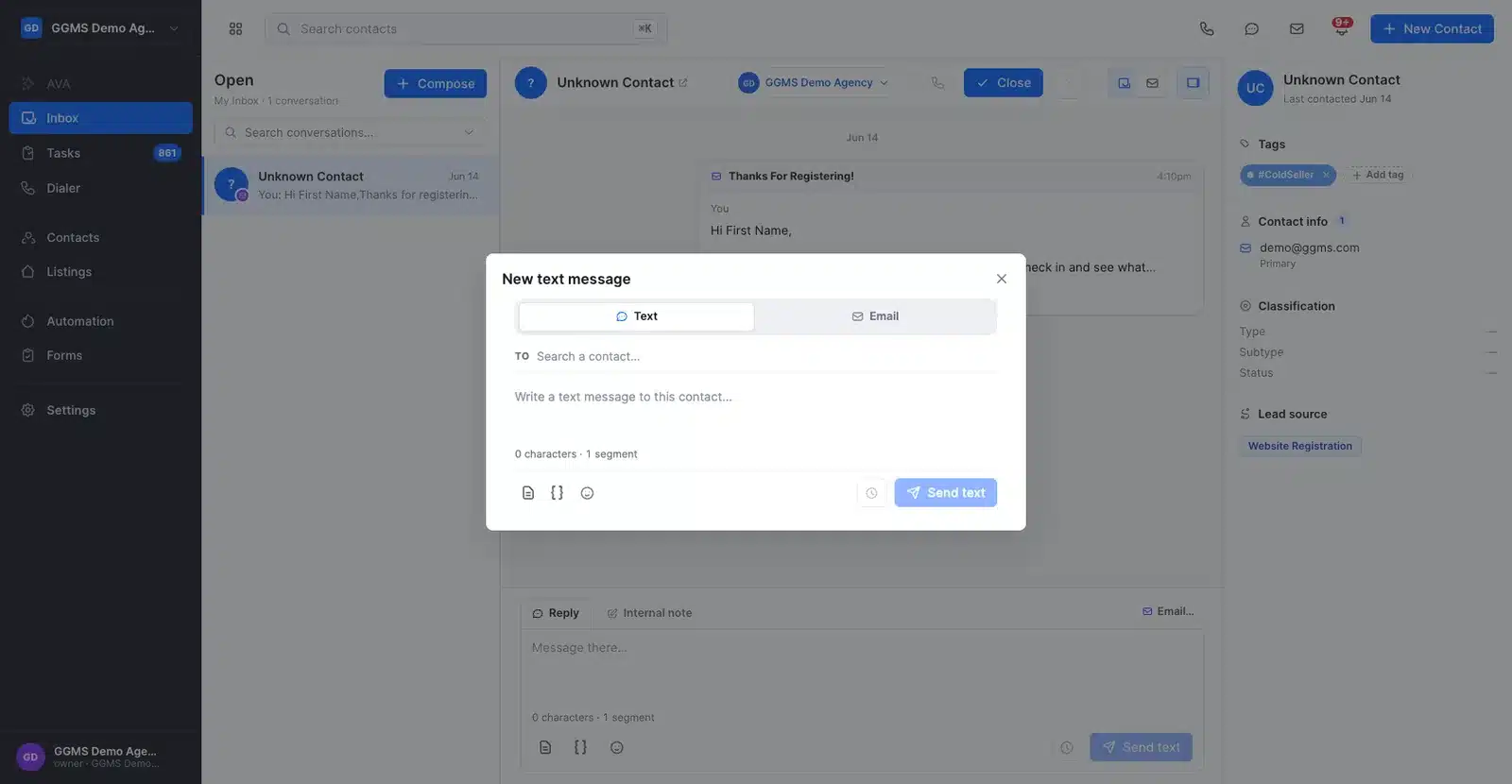
Switch between Text and Email at the top of the Compose window.
Reply and manage a conversation
- Reply by text
In the box at the bottom of the conversation, make sure the Reply tab is selected. Type your message, and click Send text. - Reply by email
Click Email above the reply box. Fill in the Subject and your message, add Cc or Bcc if needed, and click Send. - Leave an internal note
Click the Internal note tab, type your note, and click Save note. Notes are for your team, and the contact doesn’t see them.
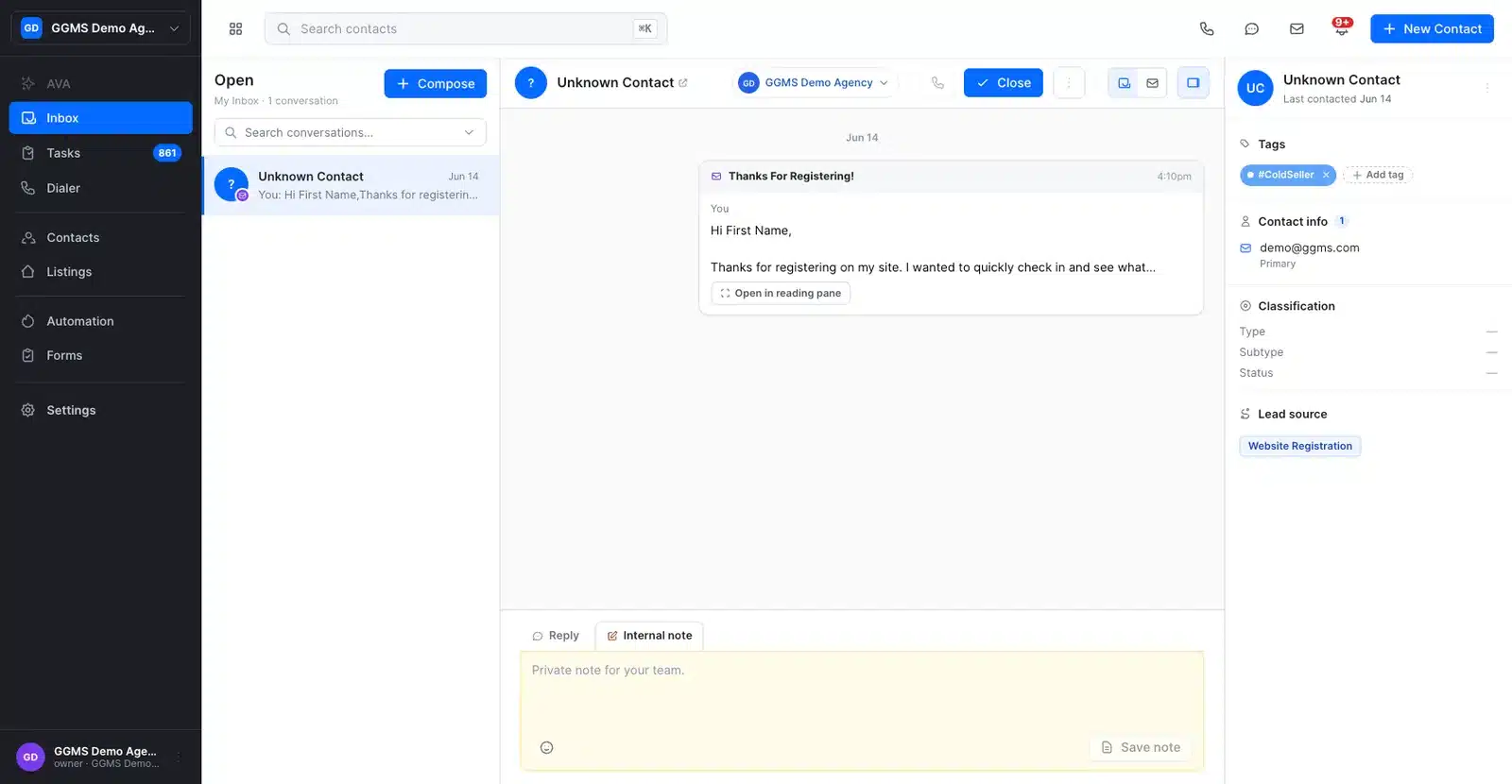
Internal notes have a yellow background so you don’t mix them up with replies. - Reassign the conversation
Click the owner’s name at the top of the conversation, and pick a team member from the Reassign owner list. - Close it when you’re done
Click Close at the top of the conversation. It leaves your Open list, and it reopens on its own if the contact replies. - Use more actions
Click More actions (the three dots) to Star the conversation, Mark unread, Create task, or Close conversation.
What to expect
New emails, texts, and calls with your contacts show up in your inbox along with the messages you send. Each conversation keeps the full history with that contact, so you can pick up where you left off.
Troubleshooting
I can’t find a conversation
Your inbox shows only conversations with contacts assigned to you. If the contact belongs to a teammate, it’s in their inbox. Also, the list shows Open conversations by default, so open Advanced search, set Status to Any status, and click Search.
I can’t send a text
You can’t text a contact who doesn’t have a phone number, so the text option is grayed out. Add a phone number to the contact first. The Send text button also stays gray until you type a message.