
Review the agency settings your team set up during onboarding, and update anything that’s out of date.
Good to know
Your agency settings were filled in for you during onboarding. You don’t need to verify your agency phone number, so you can skip the Verify Phone button.
What you’ll need
- An owner login to your GGMS CRM. Only owners can open Agency Settings.
- About 5 minutes
Step by step
- Open Agency Settings
In the left menu, click Settings. Under Company, click Agency Settings. - Check your agency details
Review Agency name, Agency phone, Address, City, State, Zipcode, and Country. If anything has changed, type the new details in the field.
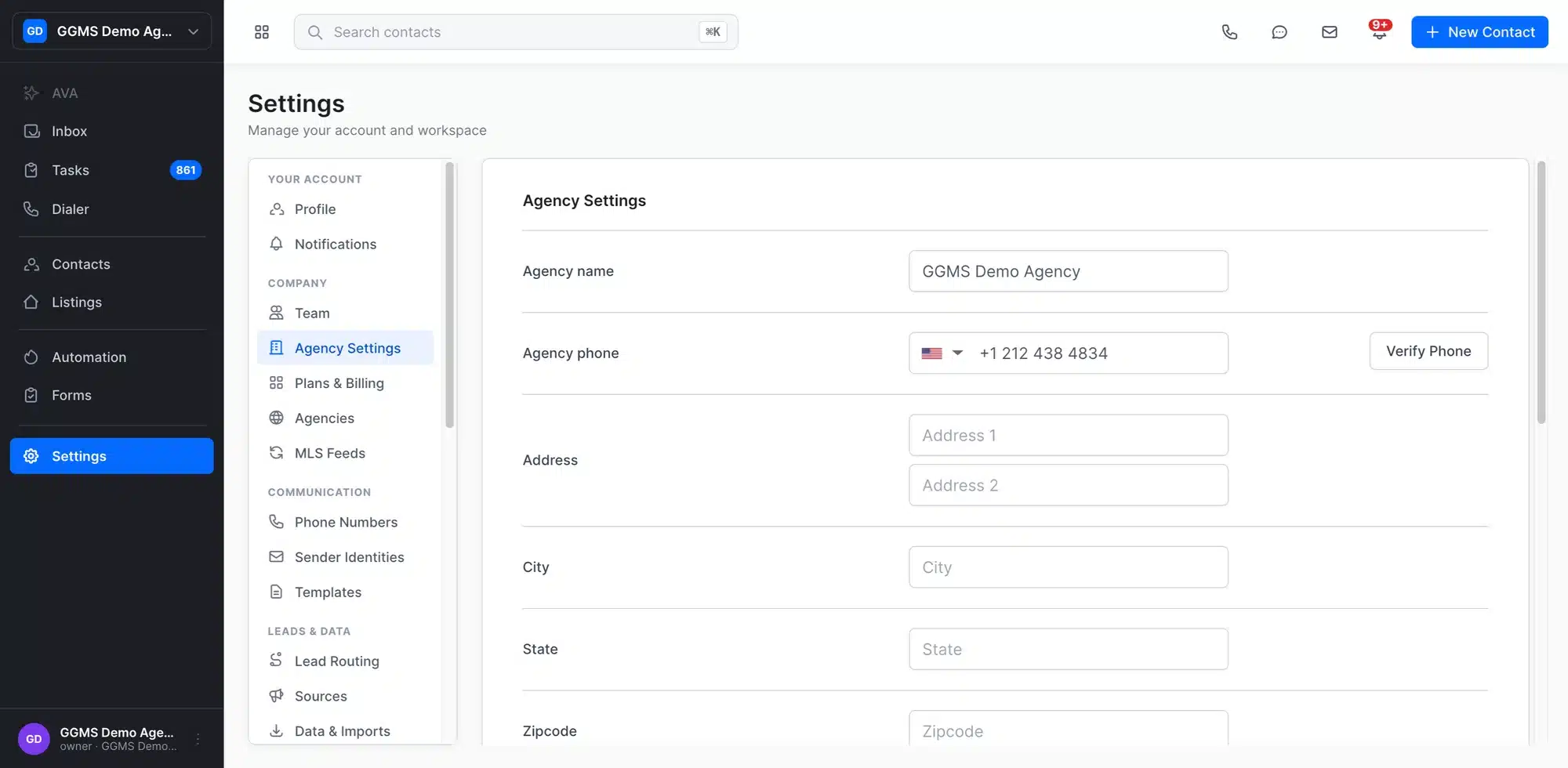
Agency Settings is under Company in the Settings menu. - Confirm your timezone
Timezone is set to your agency’s timezone when your CRM is created. Make sure it still matches the area where your agency works. - Set your communication window
Choose a start and end time in Communication Window. Communications are sent only between these hours, in your agency’s timezone. - Check that Test Mode is off
Make sure Test Mode is set to No. When it’s set to Yes, the system doesn’t send any communications. - Record your agency voicemail greeting
Under Voicemail, click Record Message to record your agency greeting. Callers hear it when no one answers. - Check your property alerts sender
Under Property Alerts, make sure a Sender Identity is selected. Property alert emails go out from this agency email address.
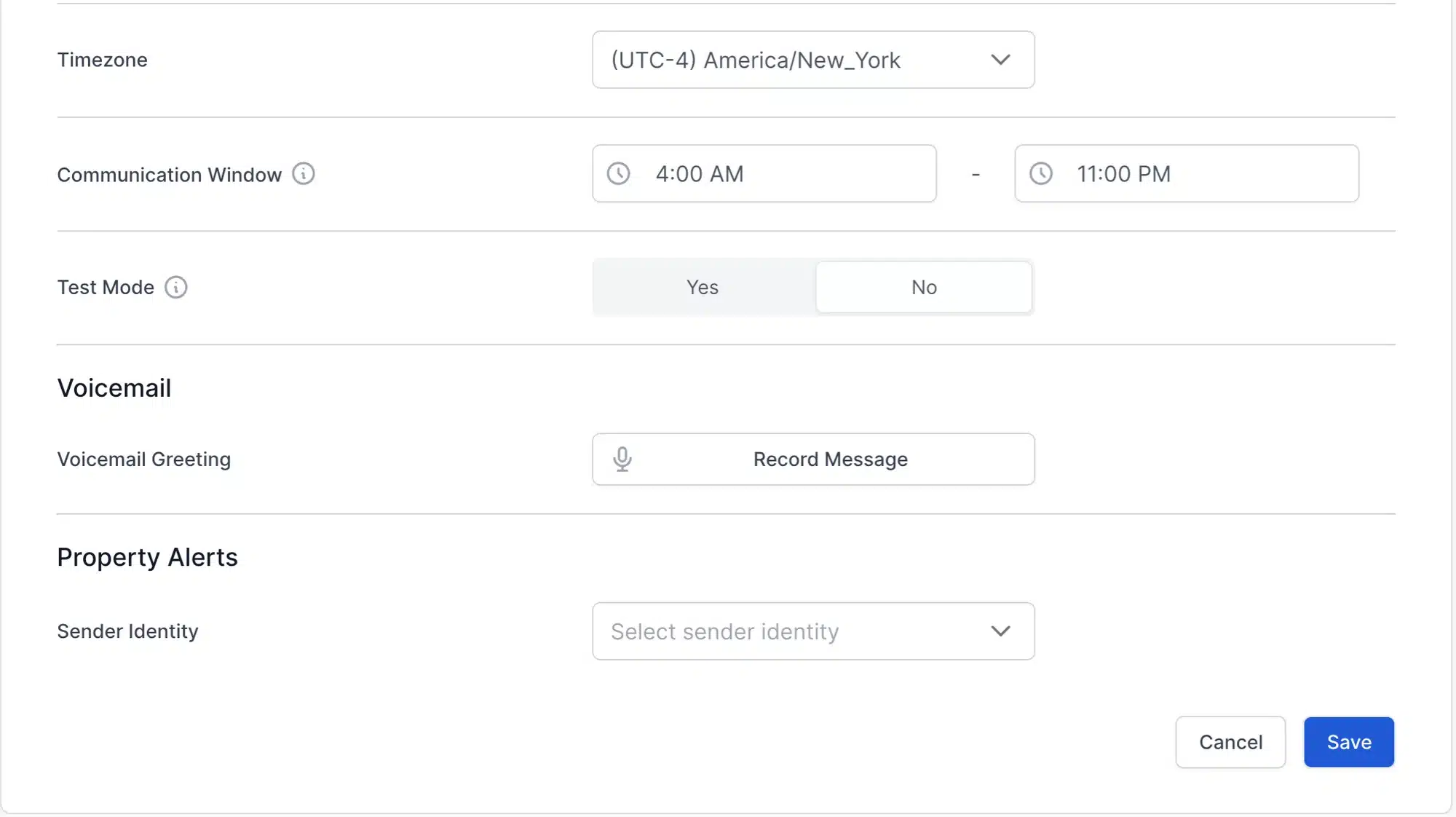
Test Mode should be set to No so your messages go out. - Save your changes
Click Save. If you don’t want to keep your changes, click Cancel instead.
Important
Leave Test Mode set to No unless GGMS support asks you to turn it on. While it’s on, the system doesn’t send any communications.
What to expect
Your changes take effect after you click Save. Messages that go out from then on use your updated details, timezone, and communication window. You can come back to Agency Settings any time your agency’s details change.
Troubleshooting
The Sender Identity list says “No available options”
Your agency email for property alerts is set up after your domain goes live. Until then, the list is empty. If your domain is already live and you still see this message, contact GGMS support.
Messages aren’t going out
Open Agency Settings and check that Test Mode is set to No. Then check that the current time is inside your Communication Window.