After reading this, you’ll be able to sign in to the CRM and find the tools you use every day.
What you see depends on your role. Owners can see and open everything in the CRM. Members see the same main tools but a shorter Settings menu. Find your role below.
Good to know
To check your role, look at the bottom of the left sidebar. Your role shows under your name, for example “owner · Oakfinch Realty.”
What you’ll need
- Your GGMS CRM email and password, or a Google account linked to your CRM login
- About 10 minutes
Sign in
- Open the login page
Go to ggms.com and click Login at the top of the page. - Choose how to sign in
Click Continue with Google, or sign in with your email. Under or continue with email, pick Password or Magic link.
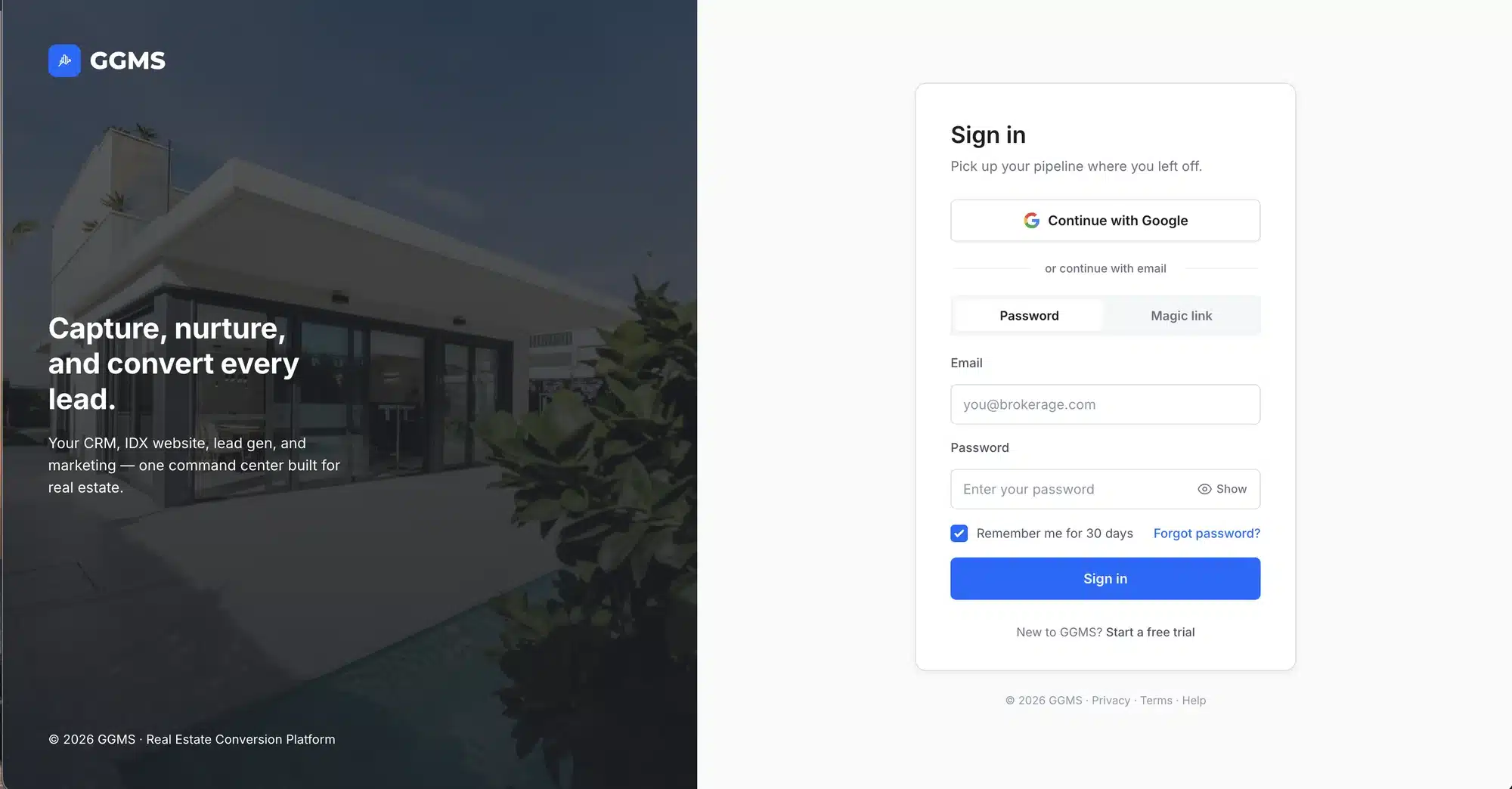
Sign in with Google, or with your email and a password or magic link. - Enter your details
Enter your Email and Password, and click Sign in. Leave Remember me for 30 days checked if you don’t want to sign in every visit. - Confirm your workspace
The CRM opens on your Contacts list. If you have more than one workspace, click your agency name at the top of the sidebar and pick the website you want.
Owner: find your way around
- Use the sidebar
The left sidebar holds the main tools: AVA, Inbox, Tasks, Dialer, Contacts, Listings, Automation, Forms, and Settings. The number next to Tasks shows how many tasks are open.
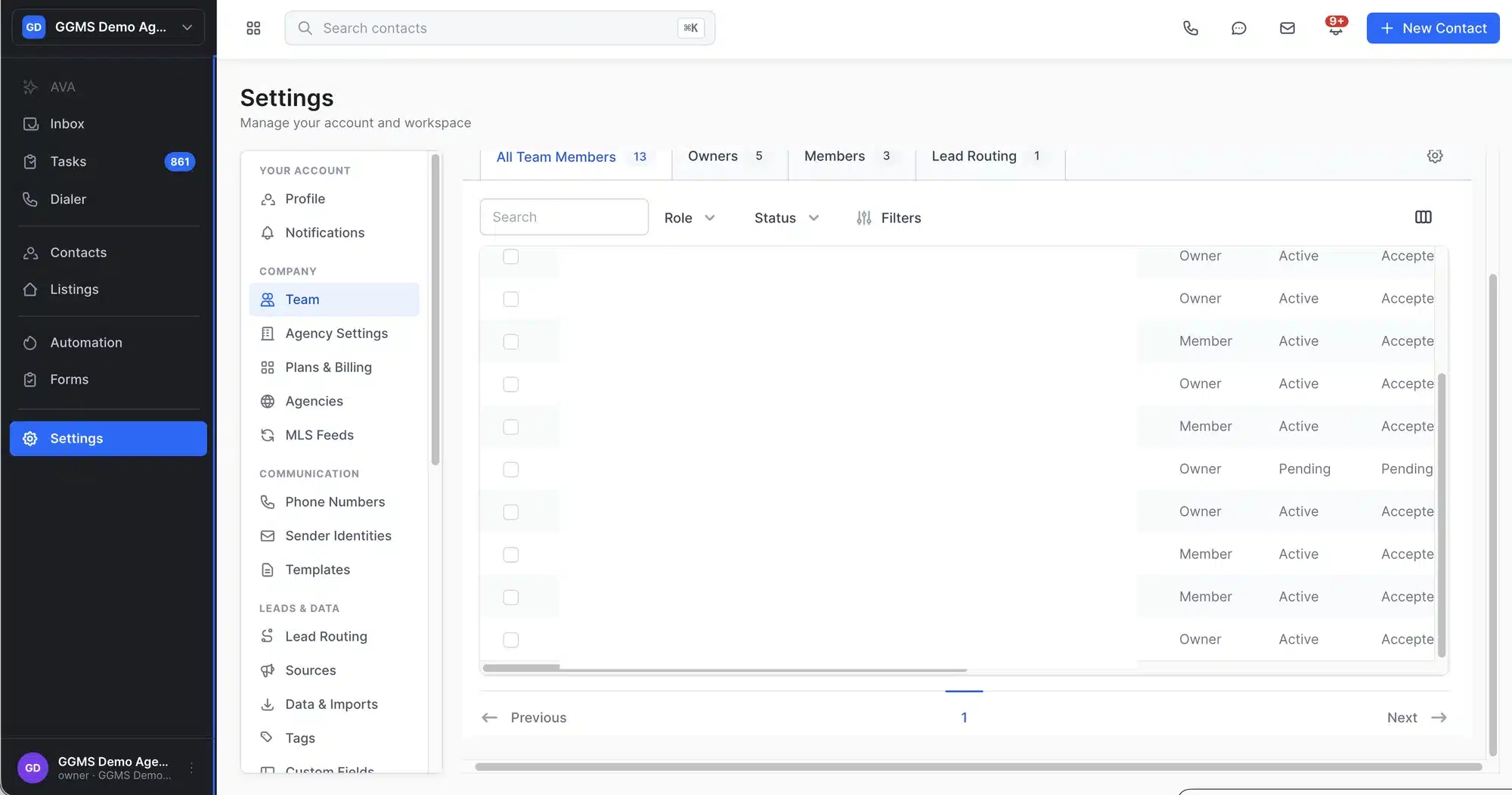
The sidebar holds every main tool, and the top bar keeps call, text, email, and New Contact one click away. - Collapse the sidebar for more room
Click the 4-squares icon next to the search box. The sidebar shrinks to icons only. To expand it again, click the same 4-squares icon. - Search for a contact
Click Search contacts at the top of the page, or press ⌘K on a Mac. Type a name, email, or phone number, and matching contacts show as you type.

Search by name, email, or phone number. - Call, text, or email from anywhere
Use the icons at the top right. The phone opens the Virtual Dialer, the chat bubble opens New Message, and the envelope opens New Email. - Check your notifications
Click the bell to see your notifications. Click Mark all read to clear them, or Notification settings to choose what you hear about. - Add a new contact
Click New Contact at the top right. Fill in Full name, Email, Assigned agent, and Website, which are required, and click Create contact. - Open Settings
Click Settings in the sidebar. As an Owner, you see every section: Your account, Company, Communication, Leads & data, Marketing, Developers, Connections, and System. - Open your account menu
Click your name at the bottom of the sidebar for Edit profile, Settings, Agency settings, Help & support, and Sign out.
Member: find your way around
- Use the sidebar
You see the same main tools as Owners: AVA, Inbox, Tasks, Dialer, Contacts, Listings, Automation, Forms, and Settings. - Search, call, text, and email
The search box, the call, text, and email icons, the bell, and New Contact work the same way as in the Owner section above. - Open Settings
Click Settings in the sidebar. Members see 4 groups: Your account (Profile and Notifications), Communication (Templates), Leads & data (Data & Imports, Tags, and Collections), and System (Event Logs and Jobs).
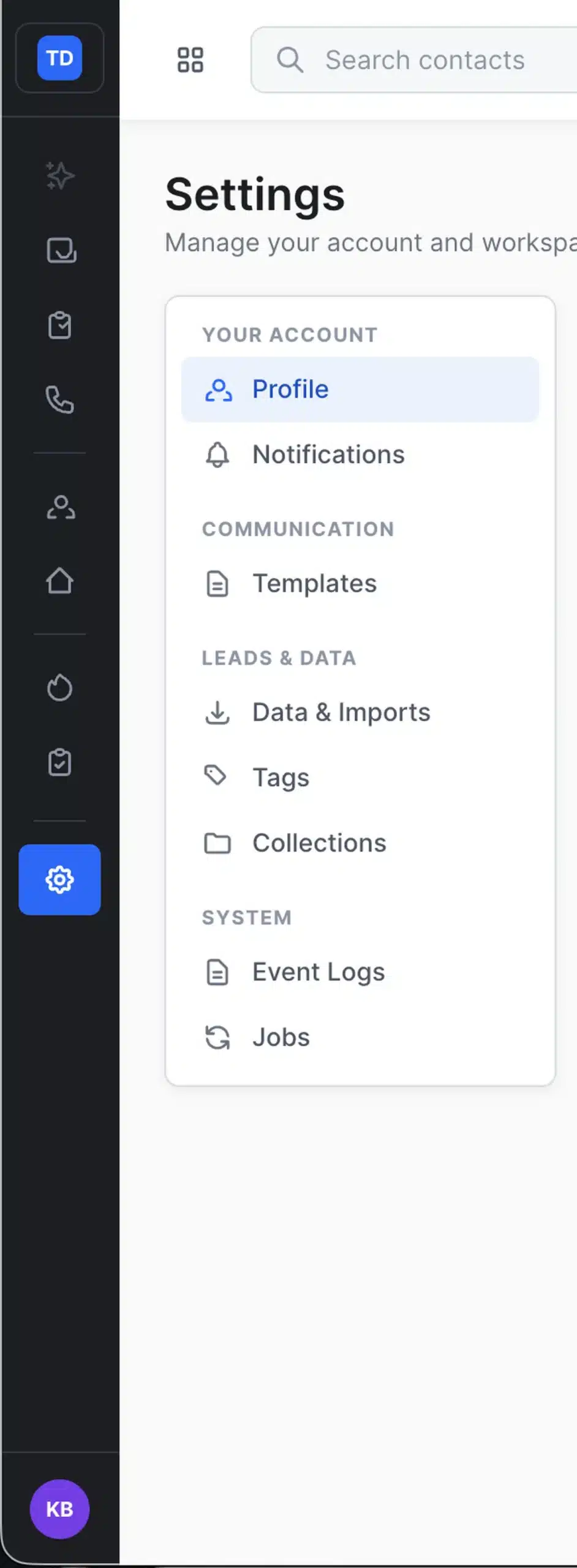
Members can open only these sidebar items and Settings pages. - Fill in your profile
On Profile, add your Title, License #, Brokerage, Bio, and social links. Your bio shows on your public agent profile on the IDX site.
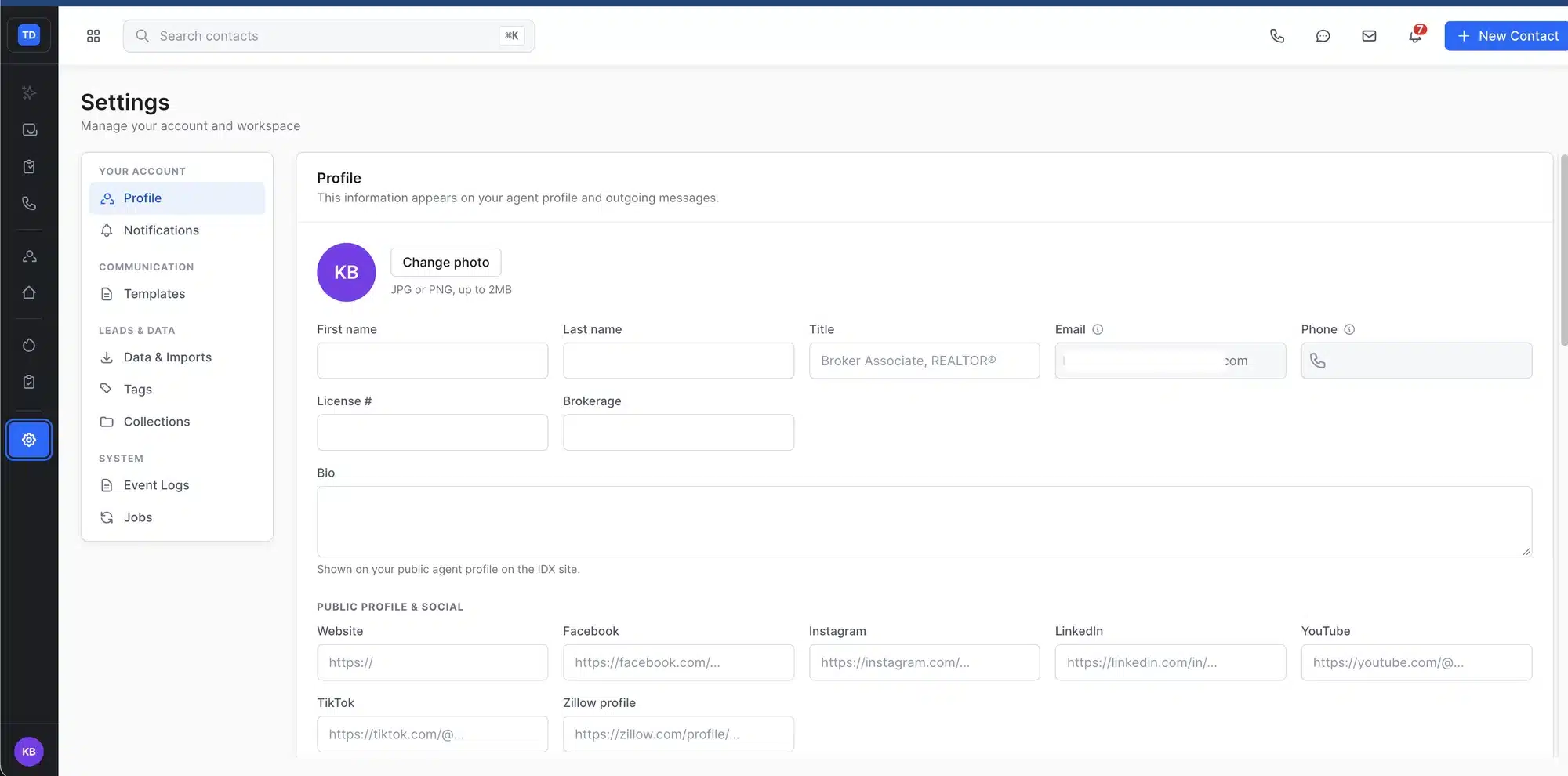
Your Email and Phone fields are grayed out. Your Owner manages them.
Important
If your Email or Phone is wrong or missing, ask your Owner to update it.
If you need a setting you can’t see, such as Team, Lead Routing, or Phone Numbers, ask your Owner.
What to expect
If you collapse the sidebar, it stays collapsed until you expand it with the 4-squares icon next to the search box. The call, text, and email shortcuts send from the phone number and email address on your profile, so set those up before you reach out to leads.
Troubleshooting
You forgot your password
On the Sign in page, click Forgot password? and follow the steps.
“No phone number found” when you click the text icon
Your profile doesn’t have a phone number yet. Owners can click Go to Settings in the message. Members should ask their Owner to add one.
“No email address found” when you click the email icon
Your profile doesn’t have a sending email address yet. Owners can click Go to Settings in the message. Members should ask their Owner to add one.