
Change a workflow’s steps and settings, pause it when you need a break, and turn it back on when you’re ready.
What you’ll need
- A login to your GGMS CRM. Every user in the CRM can open Automation.
- The workflow you want to change
- About 5 to 15 minutes
Edit a workflow
- Open the workflow
In the left menu, click Automation, then click the workflow’s name. You can also click the row’s menu button and choose Edit.
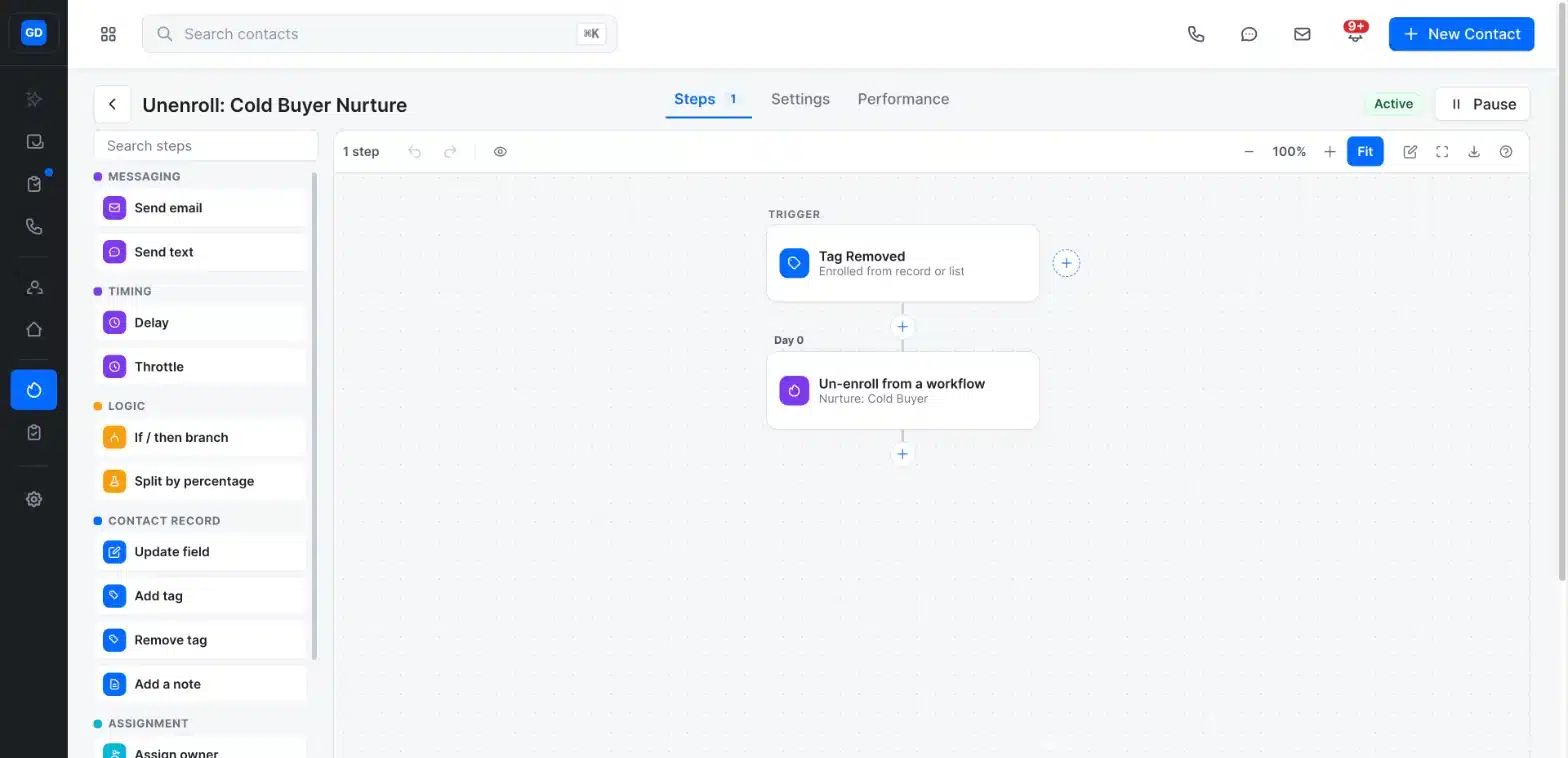
The status and the Pause button sit in the top-right corner of every workflow. - Open the step you want to change
Click a step on the canvas. Its details open in a panel on the right. - Make your changes
Update the step’s details, such as the email, the delay, or the tag. When you’re finished, click Done.

Make your changes in the panel, then click Done. - Add, move, or remove steps
Click the + between steps to add a new one. To rearrange or remove a step, click its menu button and choose Move earlier, Move later, Duplicate, or Delete. - Update the settings
Click the Settings tab to change the description, the workflow owner, who can enter, how often, and when a contact’s run ends. - Save your changes
Click Save in the top-right corner. The button becomes available once every error in the workflow is fixed.
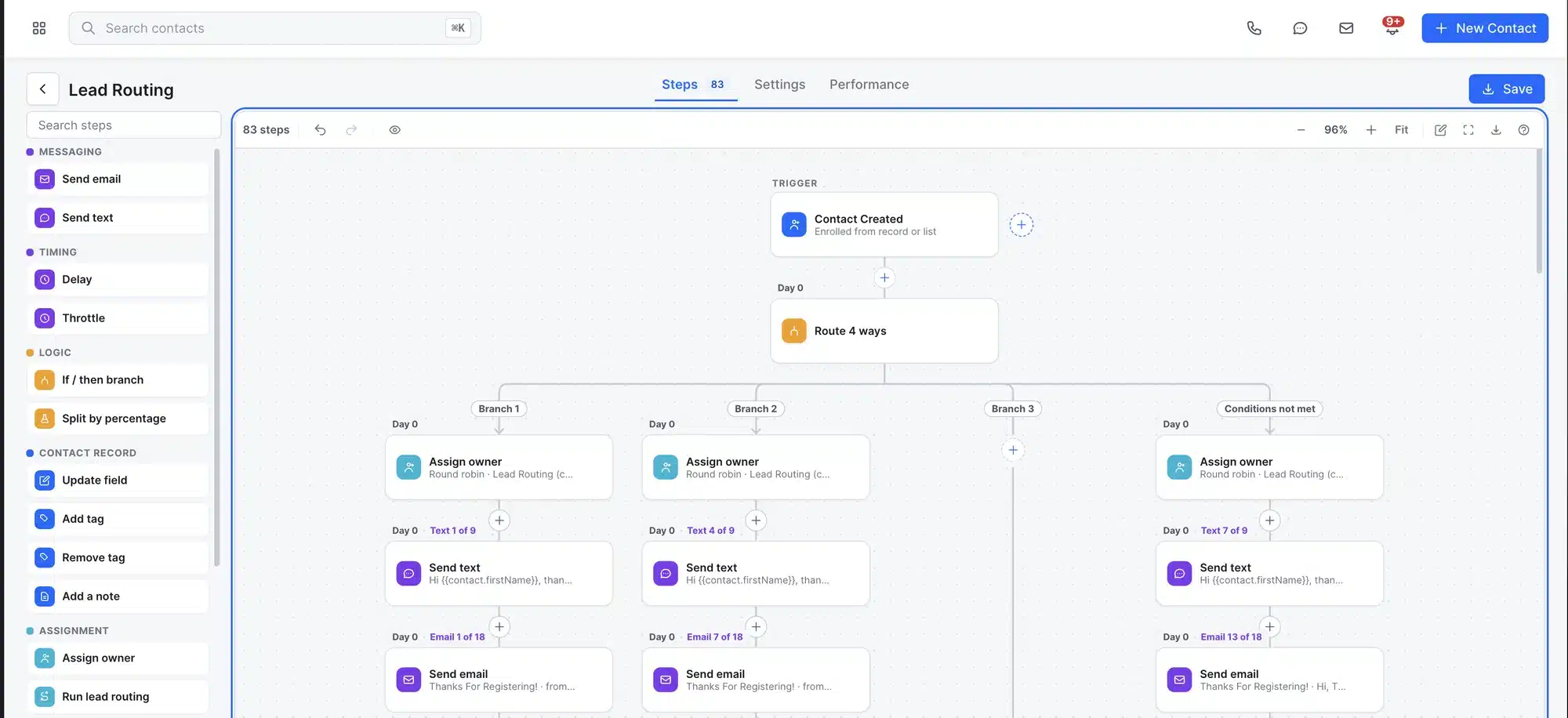
Save appears in the top-right corner after you make changes.
Pause or turn on a workflow
- Open the workflow
In the left menu, click Automation, then click the workflow’s name. - Click Pause
In the top-right corner, click Pause. The status changes to Off, and the button changes to Activate. You can also pause from the workflow list by clicking the row’s menu button and choosing Pause.
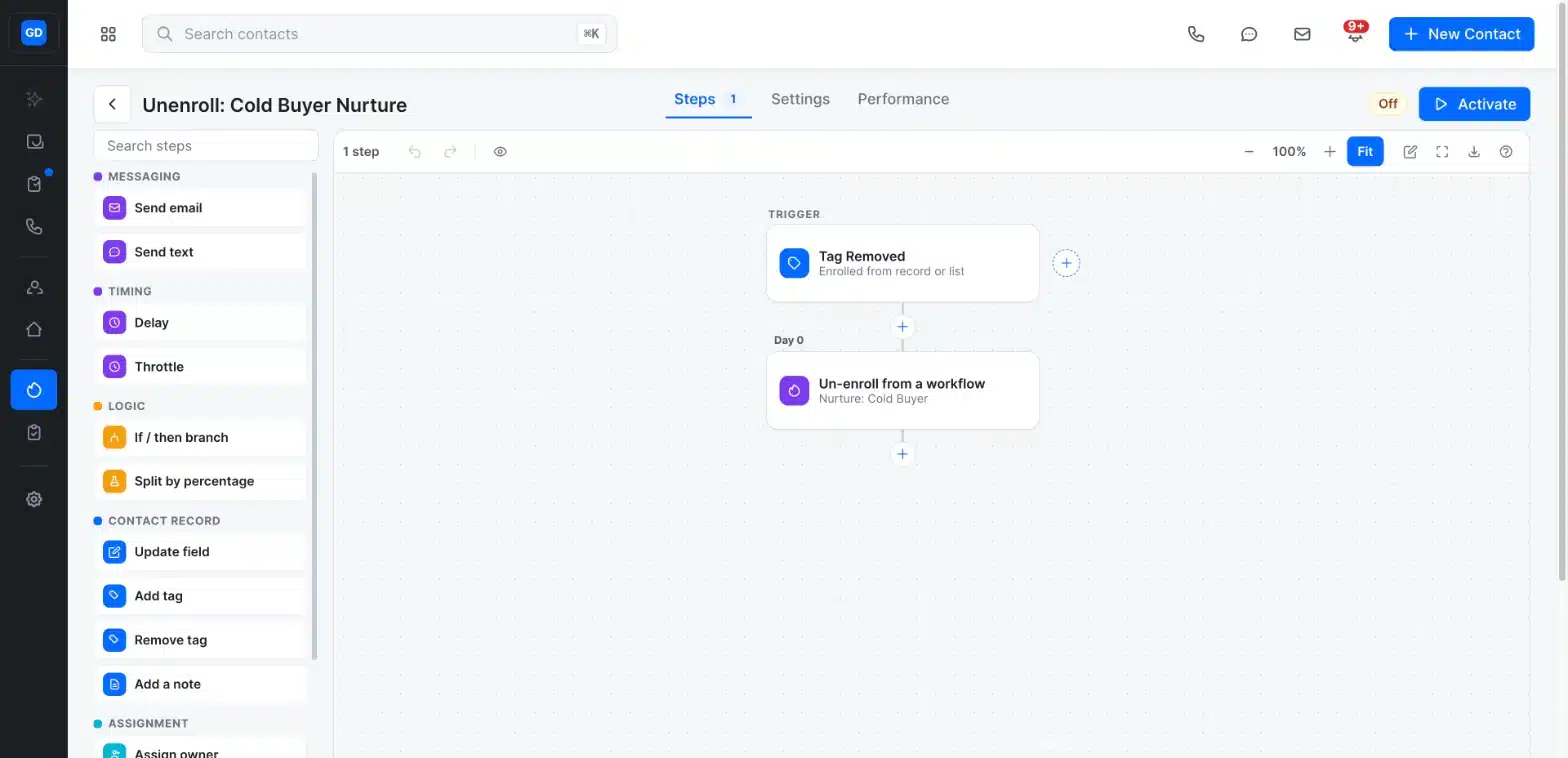
A paused workflow shows Off. Click Activate to turn it back on. - Click Activate to turn it back on
When you’re ready, open the workflow and click Activate. The status changes back to Active.
Good to know
When you turn a paused workflow back on, contacts who were already enrolled pick up where they left off.
Pause a single step
If only one step needs a break, you don’t have to pause the whole workflow. Click the step and turn off its Active switch, or click the step’s menu button and choose Pause step. The step stops running, but it stays in the workflow so you can turn it back on later.
Tip
To test a big change without affecting live contacts, click the Settings tab and choose Duplicate. The copy is saved as a new draft and doesn’t enroll anyone until you activate it.
What to expect
While a workflow is paused, its status shows Off in the workflow and in your list on the Automation page. To see how a workflow is doing after your changes, open it and click the Performance tab.
Troubleshooting
The button says Activating or Pausing
The change is still being applied. Wait a few seconds for the status to update before you click again.
The Save button isn’t available
Save becomes available only after every error in the workflow is fixed. Look for steps with red text, such as “Choose a sender to continue.” Click each one, fill in what’s missing, and then click Save.
You want to remove a workflow completely
Click the Settings tab and choose Delete. Deleting is permanent, so pause the workflow instead if you might need it again.