Delete a workflow you no longer need, or clear out several at once, from the Automation page in your CRM.
What you’ll need
- A login to your GGMS CRM. Every user can delete workflows.
- The name of the workflow you want to delete
- About 2 minutes
Important
Deleting a workflow can’t be undone. Contacts currently enrolled stop receiving it right away. If you might need the workflow again, pause it instead.
Delete one workflow
- Open Automation
In the left menu, click Automation. The Workflows tab opens with a list of all your workflows. - Find the workflow
Scroll the list, or type the workflow’s name in Search all workflows. - Open the actions menu
At the end of the workflow’s row, click the More actions button (the 3 dots). A menu opens with Edit, Pause, Duplicate, and Delete. - Click Delete
Click Delete at the bottom of the menu.

Click the 3 dots at the end of the row, then click Delete. - Confirm the deletion
In the Delete workflow? box, check that the workflow name is the one you want to remove. Then click Delete workflow.
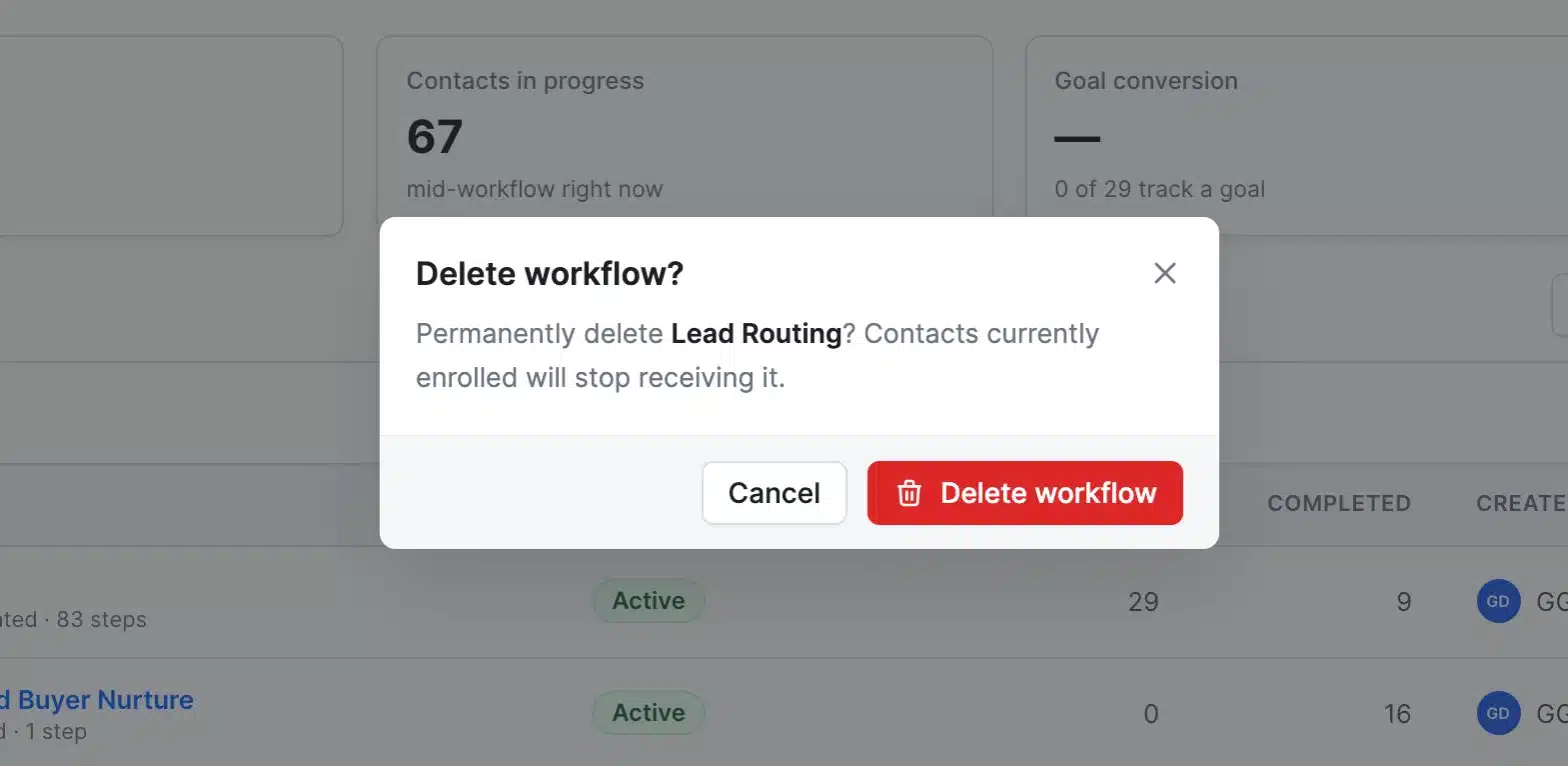
Check the workflow name before you click Delete workflow.
If you change your mind, click Cancel to close the box without deleting anything.
Delete several workflows at once
- Select the workflows
On the Workflows tab, select the checkbox next to each workflow you want to delete. A bar appears at the top of the list showing how many you selected. - Click Delete in the bar
In the selection bar, click Delete.
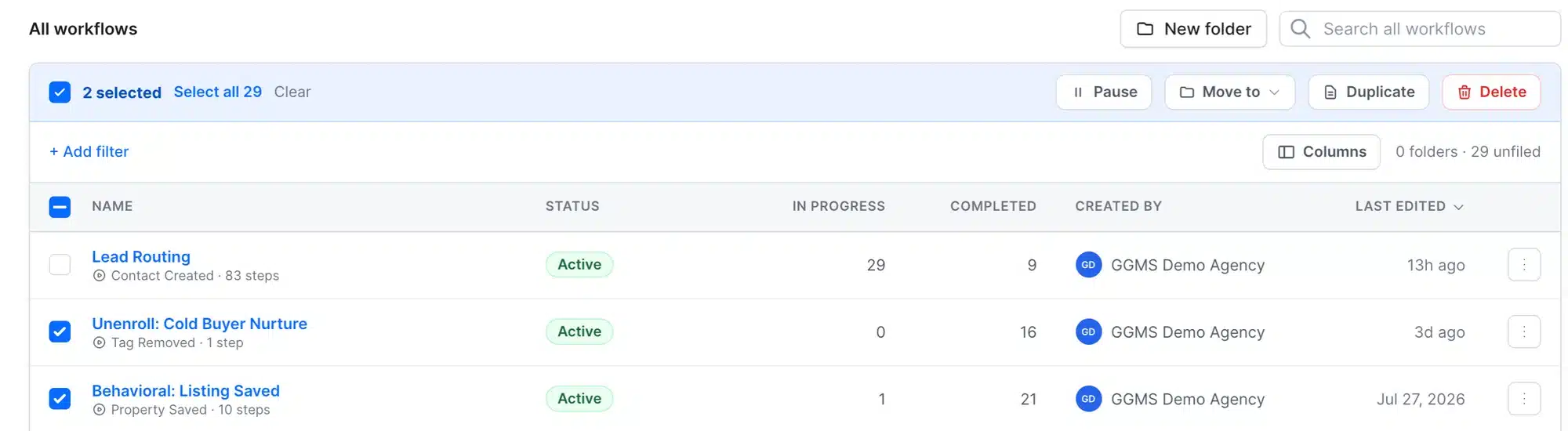
The selection bar shows how many workflows you picked. - Confirm the deletion
In the Delete selected box, review the count. Then click the red Delete button, which shows the number of workflows, for example Delete 2 workflows.
Tip
To select every workflow in the list, click Select all in the selection bar. To start over, click Clear.
What happens next
The workflow disappears from your list, and the count on the Workflows tab goes down. Contacts who were in the middle of the workflow stop receiving its remaining steps. When you delete several workflows at once, their records, activity, and conversations are also removed.
Troubleshooting
I deleted the wrong workflow
Deleted workflows can’t be restored, so you’ll need to build it again. If you might want a workflow later, pause it instead of deleting it.
I want to stop a workflow without losing it
Open the More actions menu and click Pause instead. A paused workflow keeps its steps, so you can turn it back on later.