Save the emails and text messages you send most as templates, keep them up to date, and insert them into messages in a few clicks.
What you’ll need
- A login to your GGMS CRM
- The wording for your email or text message
- About 5 minutes
Good to know
Templates are shared. Everyone on your team can see, edit, and delete every template, so changes you make apply for everyone.
Create a template
- Open your templates
In the left menu, click Settings. Under Communication, click Templates.
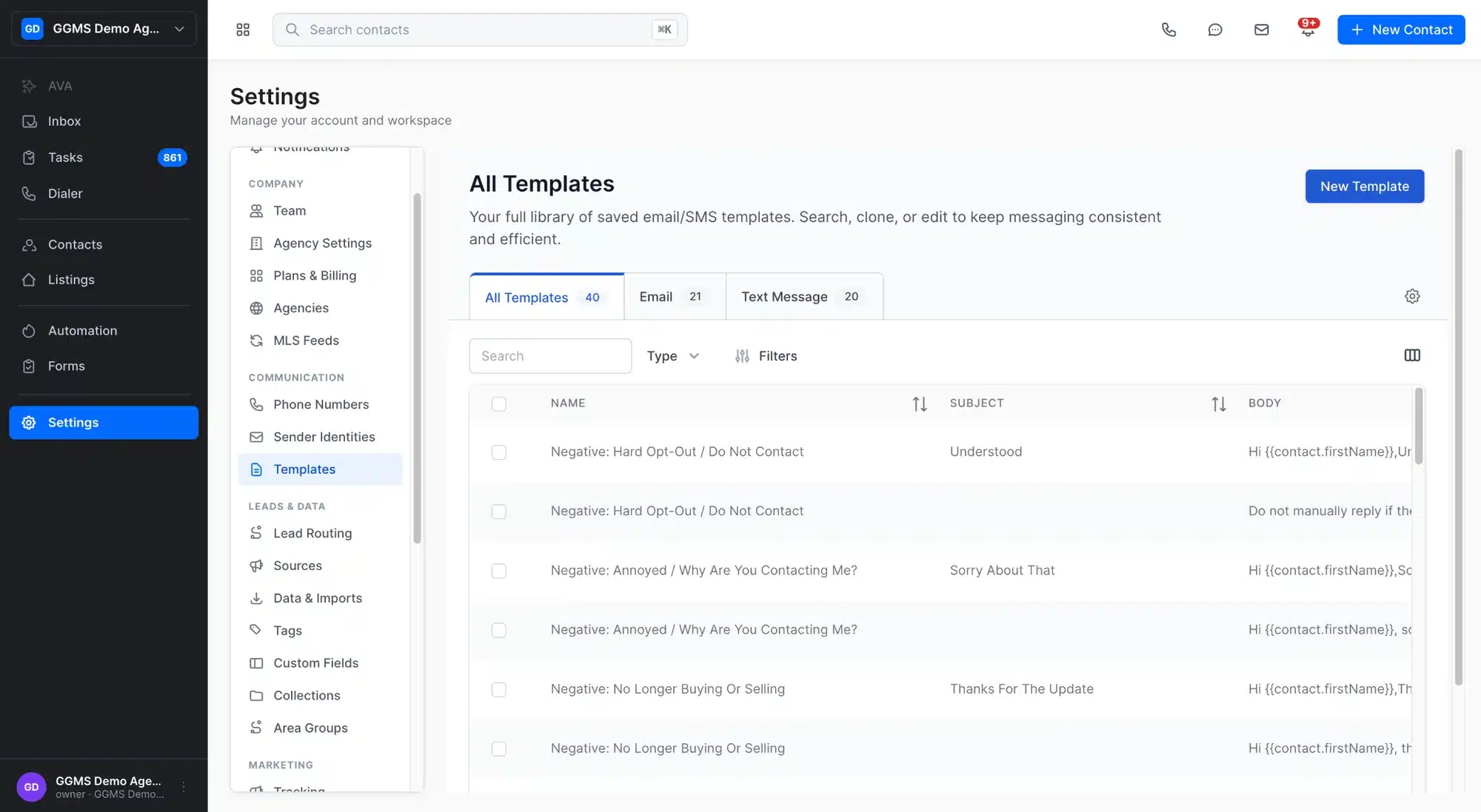
Your saved email and text templates are listed under Settings > Templates. - Start a new template
Click New Template. - Name it and pick a type
Enter a Name you’ll recognize later. In Type, choose Text Message or Email. - Choose the website
If your CRM is connected to more than one website, choose the site in Website Availability. If you have only 1 website, it’s filled in for you. - Write your message
For an email, add a Subject, then write the body. Add merge fields such as `{{contact.firstName}}` to fill in each contact’s details when you send. - Save the template
Click Save. Your new template appears at the top of the All Templates list.

Choose Email or Text Message, then fill in the name, subject, and message.
Tip
Click Preview before you save to check how your email looks. Use Tags to group templates, for example by buyer or seller.
Edit a template
- Find the template
Type part of the template name in Search to narrow the list. - Open it for editing
In the Actions column, click the pencil icon. If you don’t see the Actions column, scroll the table to the right.
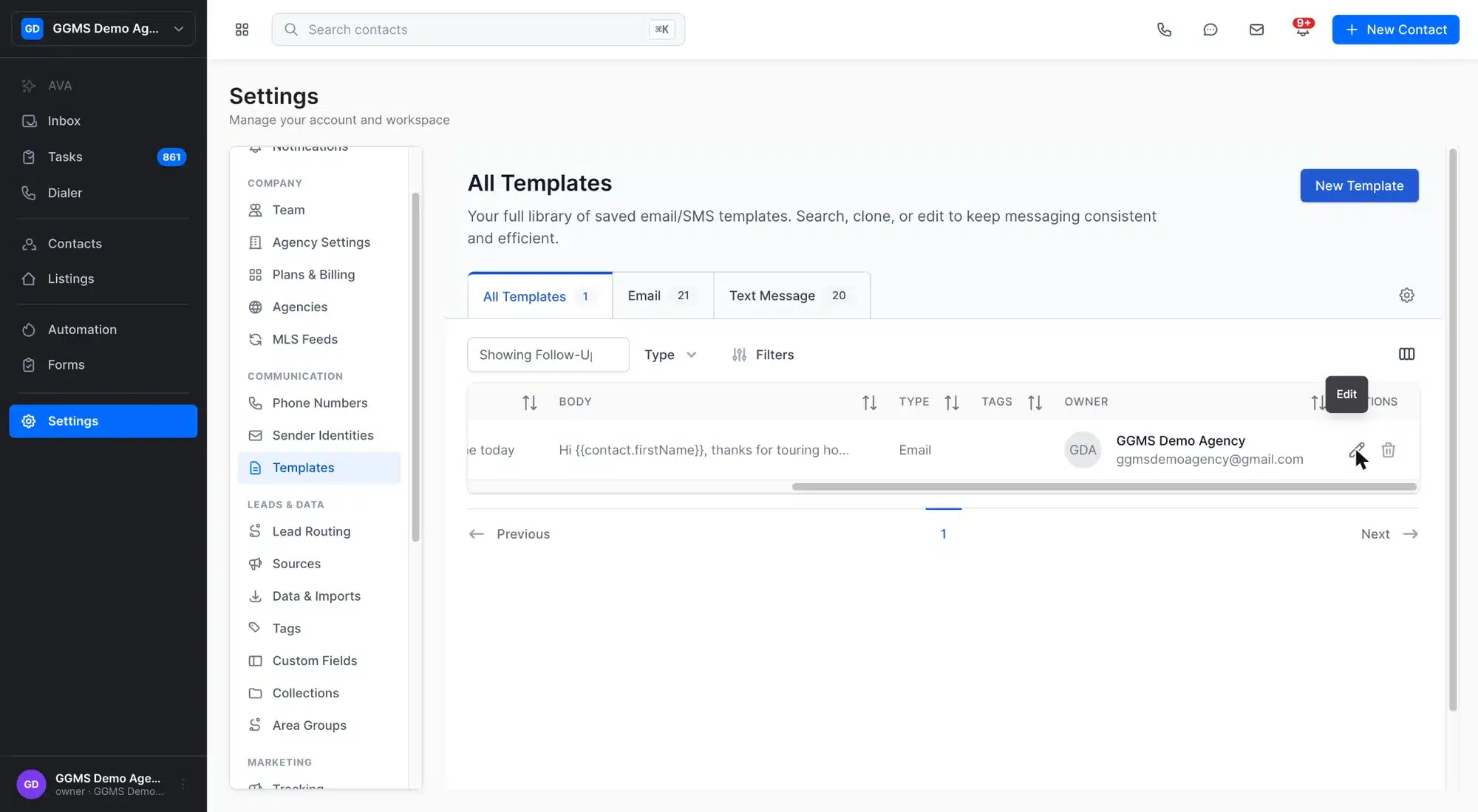
Click the pencil icon in the Actions column to edit a template. - Make your changes
Update the name, subject, tags, or message in the Update Template window. - Save your changes
Click Update.
Delete a template
- Click the trash icon
In the Actions column, click the trash icon next to the template. You can also click Delete in the Update Template window. - Confirm the delete
In the Delete Template window, click Delete.
Important
A deleted template is permanently removed for your whole team. If you might need it later, edit it instead of deleting it.
Use a template in a message
- Open the contact
In the left menu, click Contacts, then open the contact you want to message. - Choose Text or Email
In the message area, click the Text tab or the Email tab. - Open your templates
In the lower-left corner of the message box, click the template icon (it looks like a page). The templates window opens.
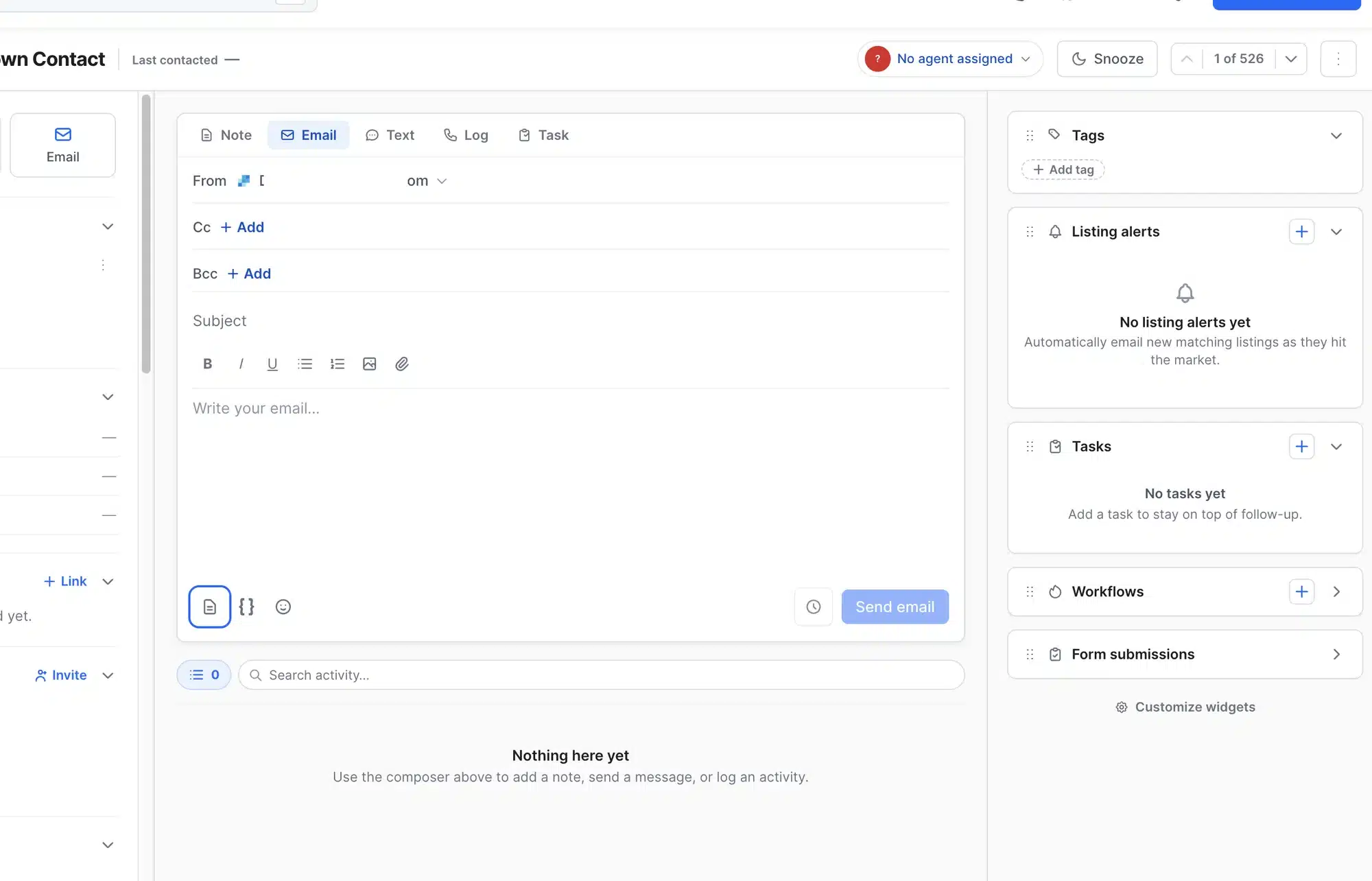
The template icon is in the lower-left corner, next to the merge field and emoji buttons. - Pick a template
Search or scroll the list, then click a template to preview it on the right. - Insert it
Click Insert template. Review the message, then send it.
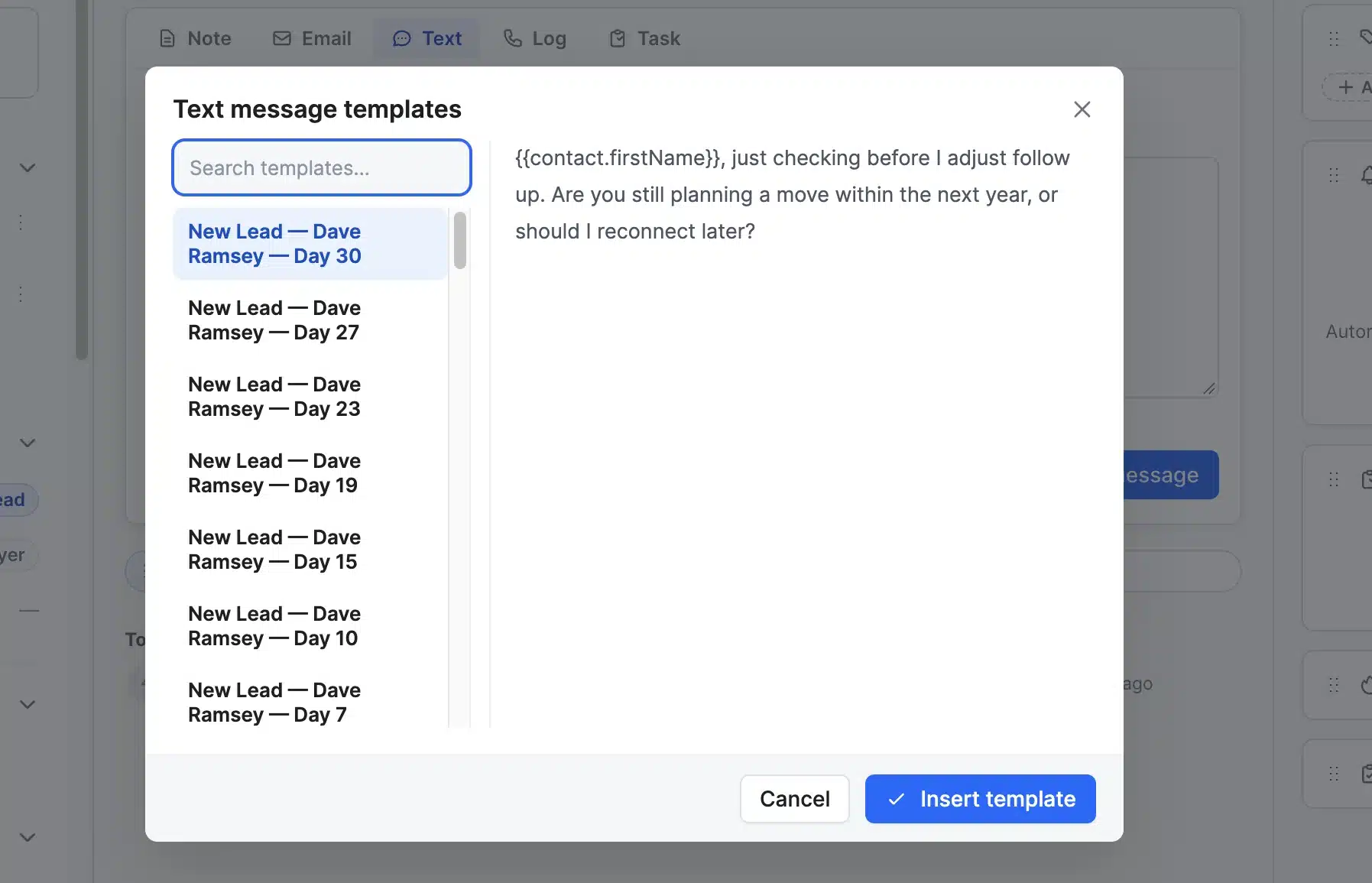
Select a template to preview it, then click Insert template.
What happens next
Changes you make to a template apply to messages you send after you save. Messages you already sent don’t change.
Troubleshooting
I can’t find the Actions column
The templates table is wider than most screens. Scroll the table to the right to see the pencil and trash icons.
I see an error when I open a template
If an error appears right after you update a template, refresh the page and open the template again.
I can’t change Website Availability
Website Availability is only a drop-down menu when your CRM is connected to more than one website. With 1 website, every template uses that site.